
BigCommerce
Connect BabyLoveGrowth to BigCommerce with a store hash and access token, then publish on auto-pilot.
The BigCommerce integration lets BabyLoveGrowth publish articles directly to your BigCommerce store blog. Once connected, every newly generated article is published automatically — live or as a draft, your choice.
Integration Demo
How to Connect BigCommerce
Open Settings → Integrations, find BigCommerce under the CMS tab, and click Connect to launch the setup wizard. The wizard walks you through 5 short steps, mirrored below.
Already connected? The BigCommerce card shows a Connected badge — click Manage to update your settings at any time.
What You Needv
- Your Store Hash (from your store URL)
- An Access Token from a Store-level API account
- WebDAV URL, Username, and Password (to upload article images)
Step 1: Find your Store Hashv
Open your BigCommerce store URL and copy the part between store- and
.mybigcommerce.com.
Example: https://store-mh5fua96uw.mybigcommerce.com/... → your Store Hash is
mh5fua96uw.
Paste it into the Store Hash field in the wizard.
Step 2: Create an API accountv
In your BigCommerce admin, follow Settings → API → Store-level API accounts. Then:
Click Create API account (top right)
Select token type V2/V3 API token and give it a name — e.g. "Blog Sync"
Under Content, set access to Modify
Click Save and copy the Access Token
Step 3: Copy your Access Tokenv
After saving the API account, BigCommerce shows your Access Token. Copy it and paste it into the wizard.
Important: BigCommerce only shows this token once. Copy it before clicking anything else.
Step 4: Get your WebDAV credentialsv
We need these to upload article images to your store. Find all three on the same screen under Settings → Advanced → File access (WebDAV):
- WebDAV URL (Path)
- WebDAV Username
- WebDAV Password
Step 5: Blog publishingv
Set an Author Name to show on posts and choose how articles should be published under Publish Settings:
Publish Immediately — articles go live as soon as they're generated
Draft — articles are saved as drafts for you to review first
Click Connect to finish. You'll see the BigCommerce connected! screen.
Publishing & Verifyingv
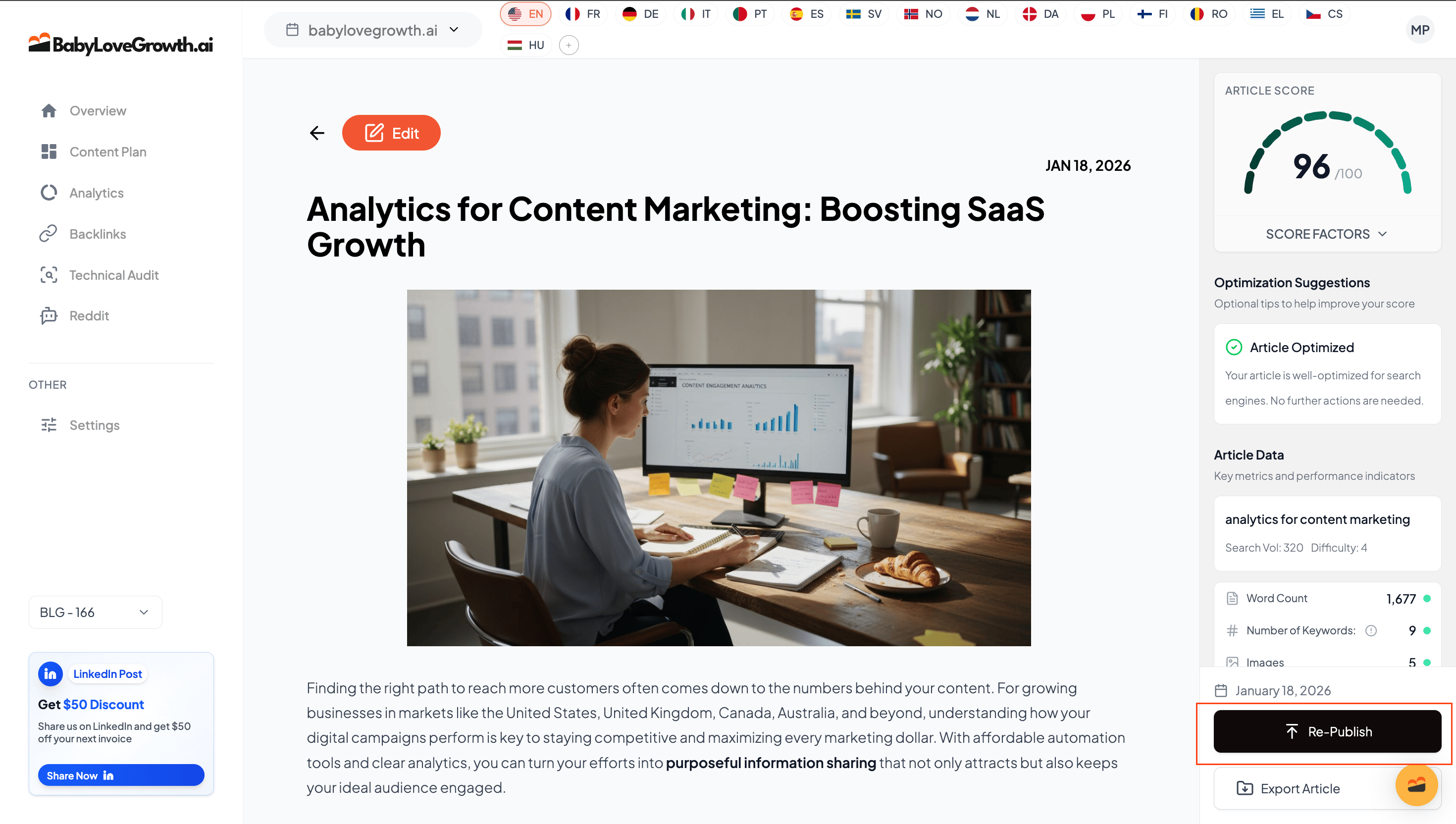
With Automatically Publish on (toggle at the top of the Integrations page), new articles publish to BigCommerce on their own. To verify the connection right away:
Go to your Content Plan
- Publish or re-publish any article
- In BigCommerce, open your store blog to confirm the article appears
Troubleshooting & FAQv
Invalid Store Hash?
Re-copy the value between store- and .mybigcommerce.com from your
store URL.
Token issues?
Regenerate the API account and ensure token type is V2/V3 and Content is set to Modify.
Publish fails?
Confirm the integration shows Connected and the Access Token is active. Verify the WebDAV credentials are correct.
Images not uploading?
Check your WebDAV credentials. WebDAV is required for uploading article images to BigCommerce.
What's the difference between V2/V3 and V1 API tokens?
Use V2/V3 API tokens — they provide the access needed for blog content. V1 tokens are legacy and may not work.
Can I change the author name later?
Yes. Update the author name via Manage, and it applies to future published articles.
Will articles go live immediately?
Only if you choose Publish Immediately. Choose Draft to review in BigCommerce before going live.
What if I regenerate my Access Token?
The old token stops working immediately. Paste the new token via Manage to restore the connection.
Need more help?
Contact support via the chat icon in the bottom-right corner.