
GoHighLevel
Connect BabyLoveGrowth to GoHighLevel with a Private Integration token and publish on auto-pilot.
The GoHighLevel integration lets BabyLoveGrowth publish articles directly to your GoHighLevel blog. Once connected, every newly generated article is published automatically — published or draft, your choice.
How to Connect GoHighLevel
Open Settings → Integrations, find GoHighLevel under the CMS tab, and click Connect to launch the setup wizard. The wizard walks you through 6 short steps, mirrored below.
Already connected? The GoHighLevel card shows a Connected badge — click Manage to update your blog, author, or publish settings at any time.
What You Needv
- A GoHighLevel sub-account with access to create Private Integrations
At least one Blog with a published post (Sites → Blogs)
- Your Location ID and a Private Integration token
Step 1: Set up your blog in GoHighLevelv
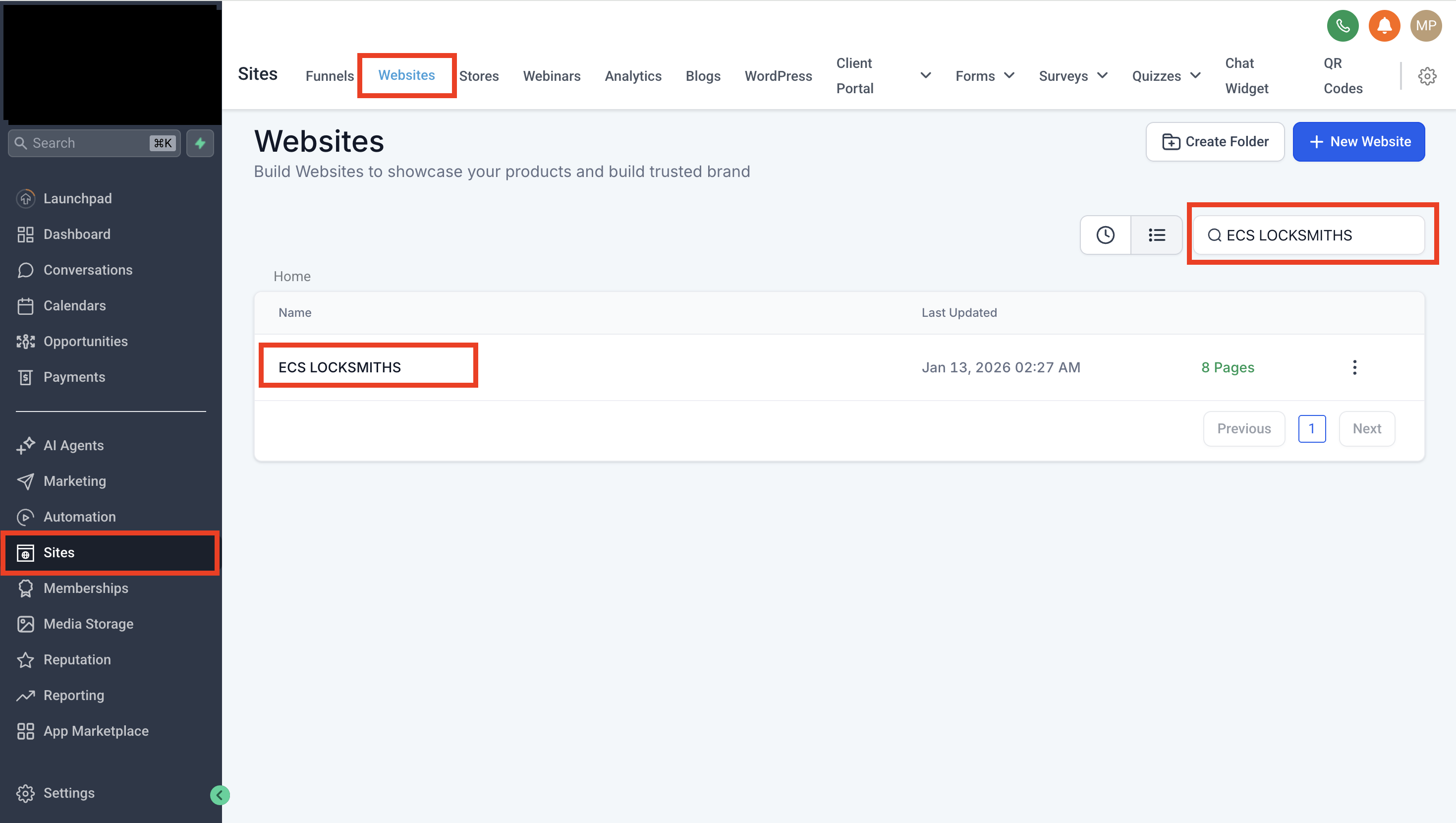
Before connecting, your sub-account must already have a blog with at least one published post. We need an existing blog to publish into.
In GoHighLevel, open Sites → Websites, find the site you want to connect, and confirm it has a blog (create one under Sites → Blogs if not). Then click My blog is set up to continue.
Step 2: Create a Private Integrationv
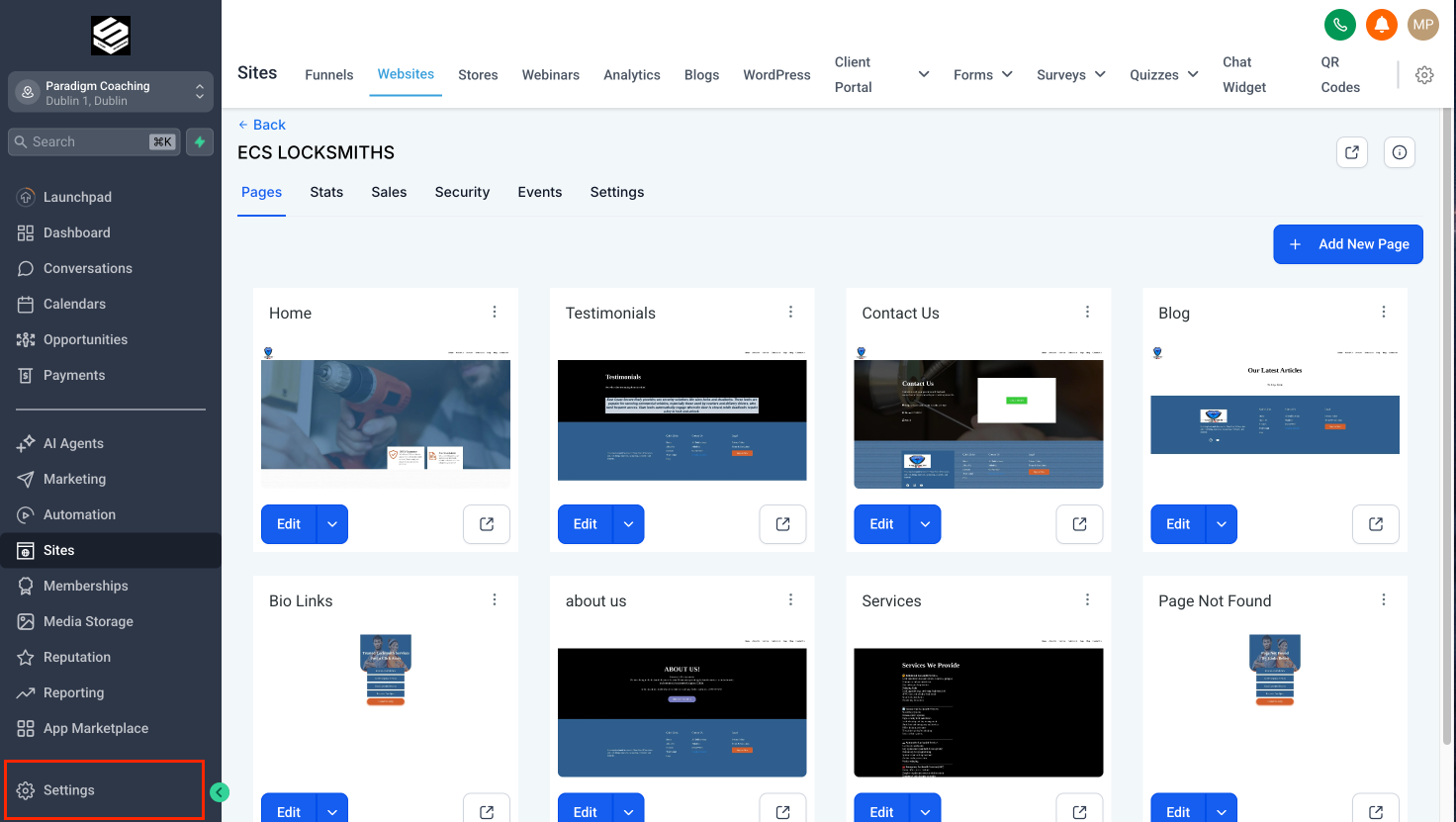
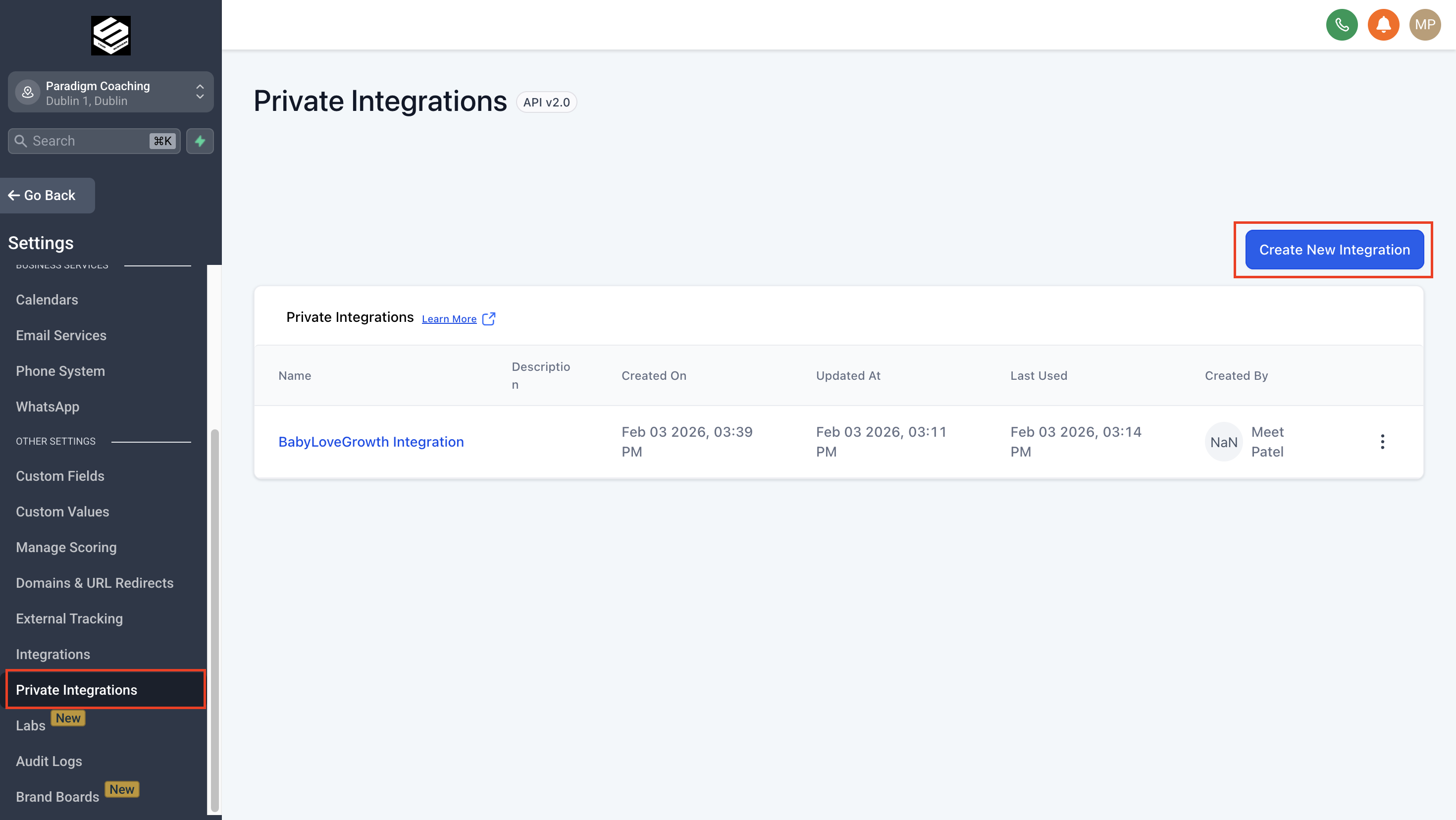
In your GoHighLevel sub-account, follow Settings → Private Integrations → Create New Integration. Then:
Click Create New Integration
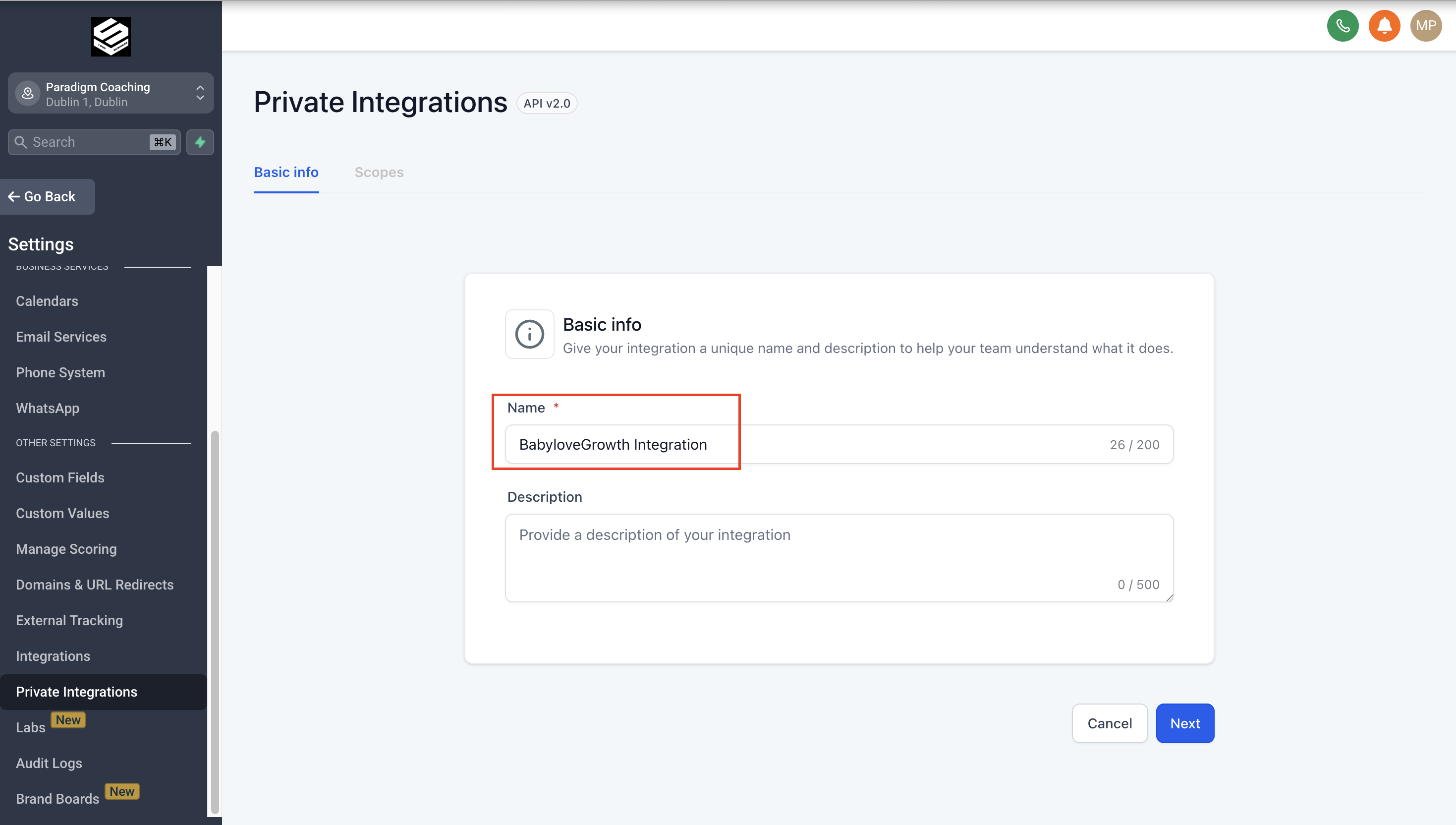
- Give it a name like "Blog Sync"
- Open the next step to see which scopes to enable
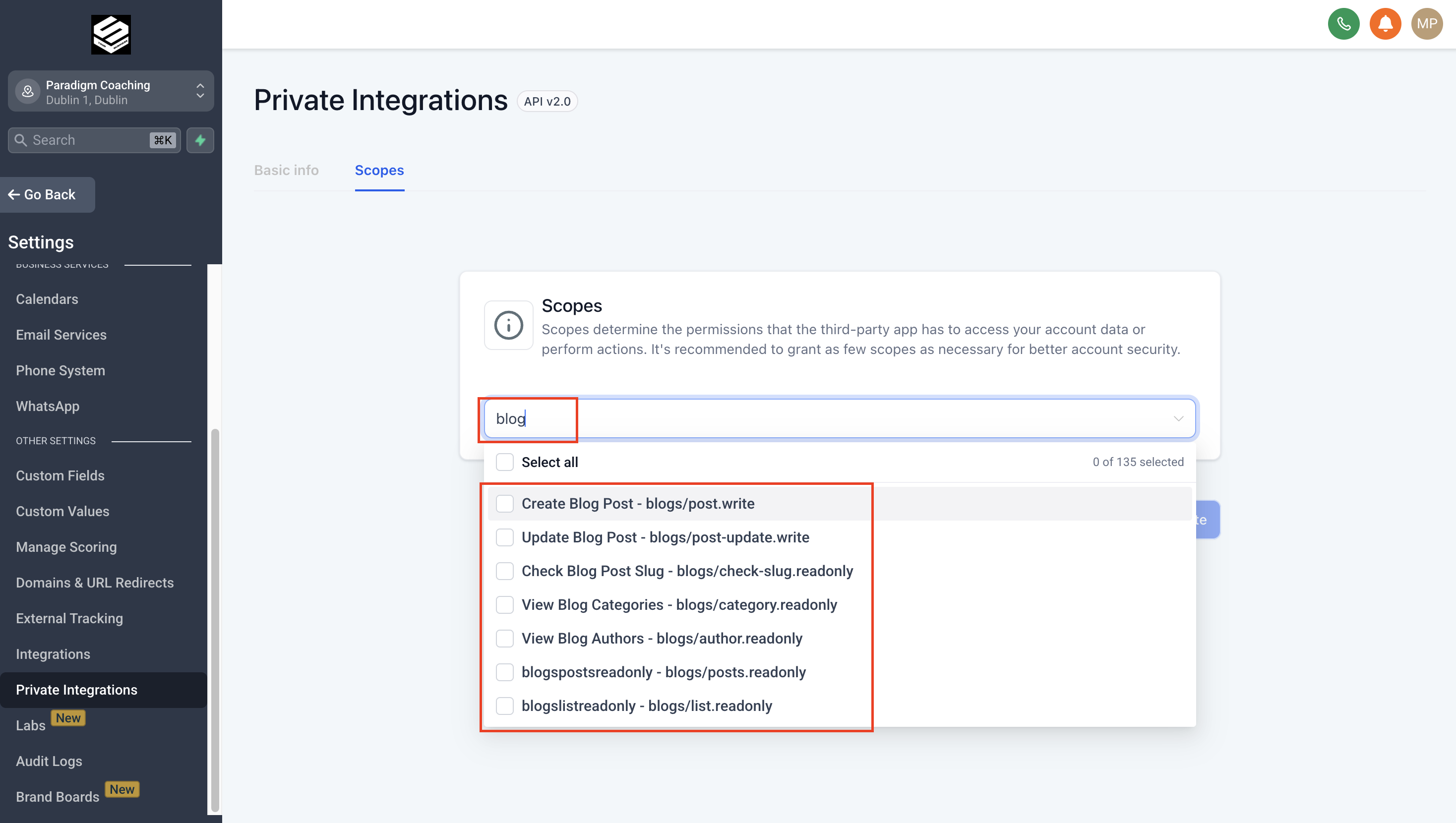
Step 3: Enable these scopesv
Tick every scope below — we need all of them to publish posts:
blogs/post.write— Create blog postblogs/post-update.write— Update blog postblogs/check-slug.readonly— Check blog post slugblogs/category.readonly— View blog categoriesblogs/author.readonly— View blog authorsblogs/posts.readonly— View blog postsblogs/list.readonly— View blogs list
Step 4: Paste your access tokenv
Once you save the Private Integration, GoHighLevel reveals a token (starts
with pit-). Copy it and paste it into the wizard.
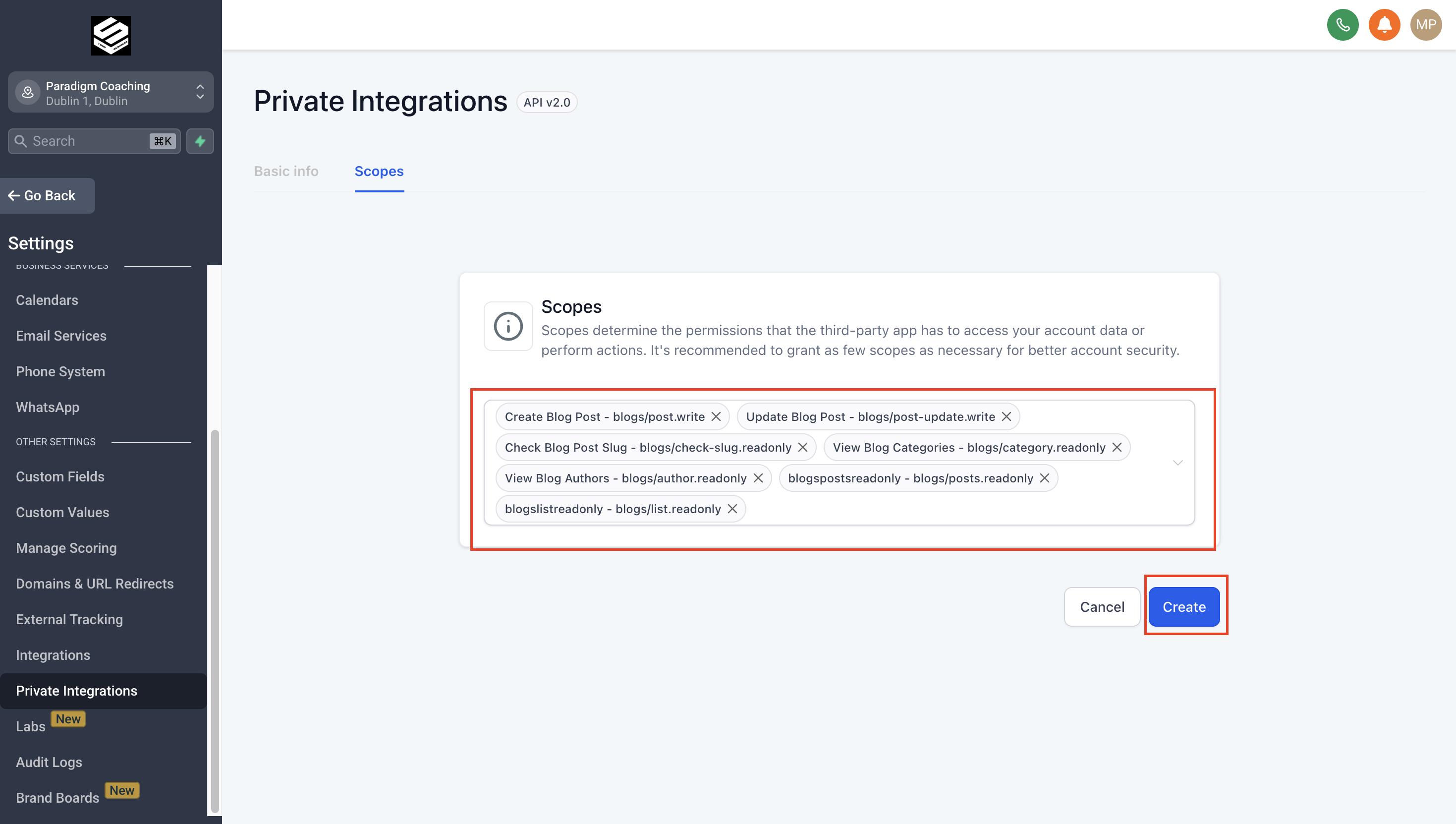
Important: This token is shown only once. If you lose it, you'll need to recreate the Private Integration.
Step 5: Add your Location IDv
Find the Location ID for the sub-account you want to publish into under Settings → Business Profile → Location ID, then paste it into the wizard.
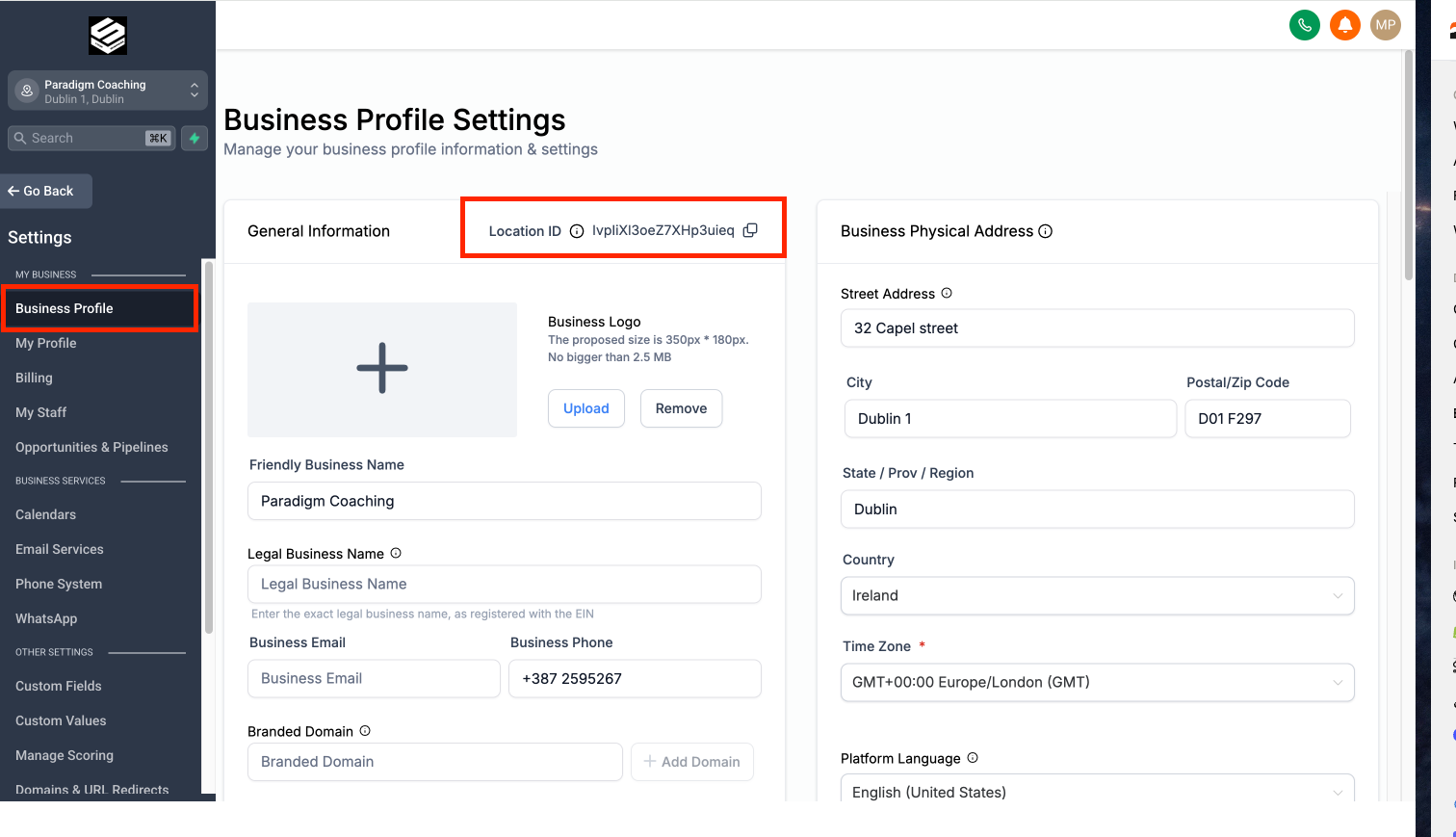
Note: The Location ID is a long alphanumeric string unique to your location.
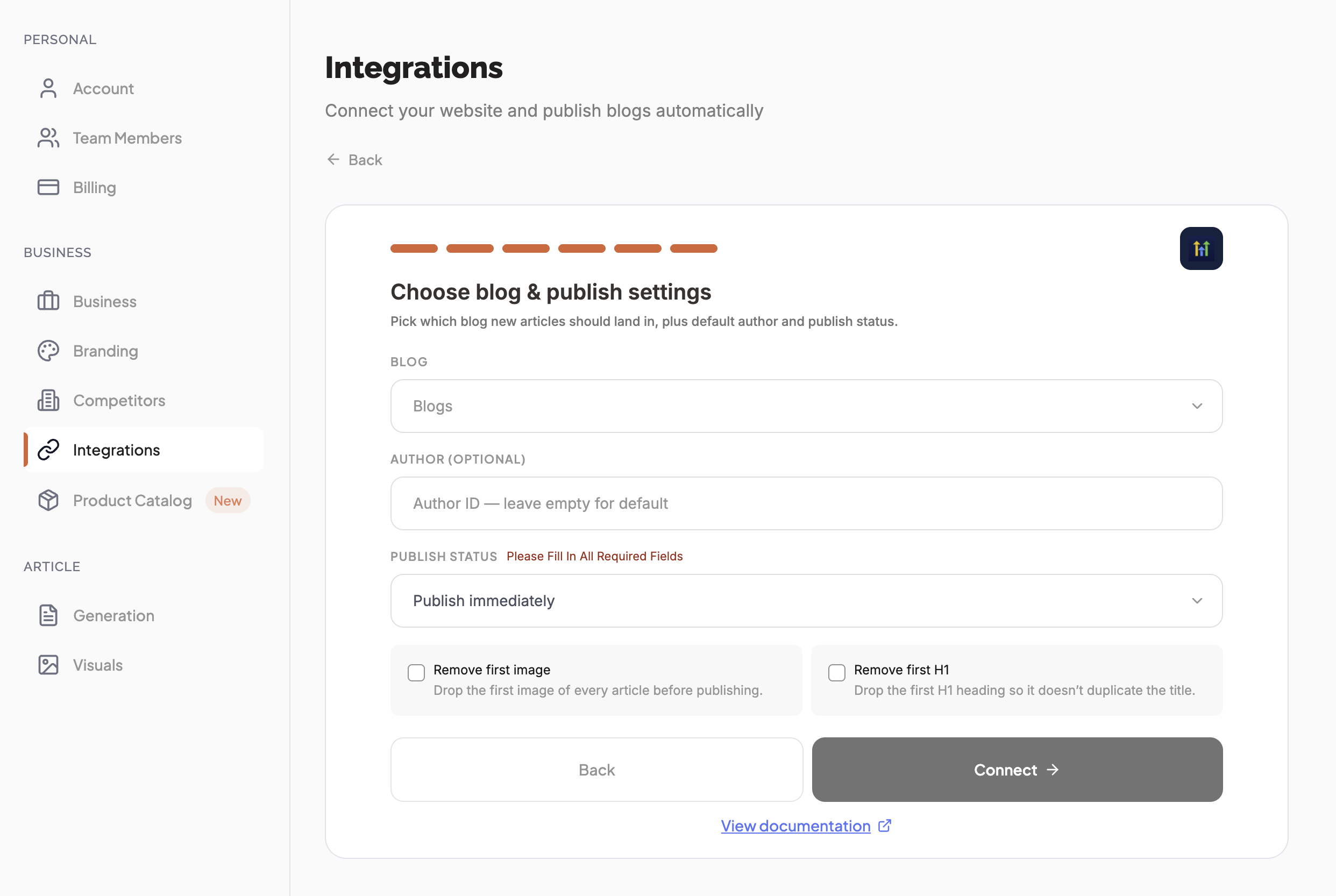
Step 6: Choose blog & publish settingsv
Pick which blog new articles should land in, plus the default author and publish status. The Blog and Author dropdowns load automatically once your token and Location ID are valid.
Blog — where new articles are published
Author (optional) — leave empty for the default author
Publish Status — Publish immediately or Save as draft
Remove first image (optional) — drops the first image of every article so your hero image doesn't appear twice if your template already shows one
Remove first H1 (optional) — drops the first H1 so it doesn't duplicate the title your template renders
Click Connect to finish. You'll see the GoHighLevel connected screen.
Publishing & Verifyingv
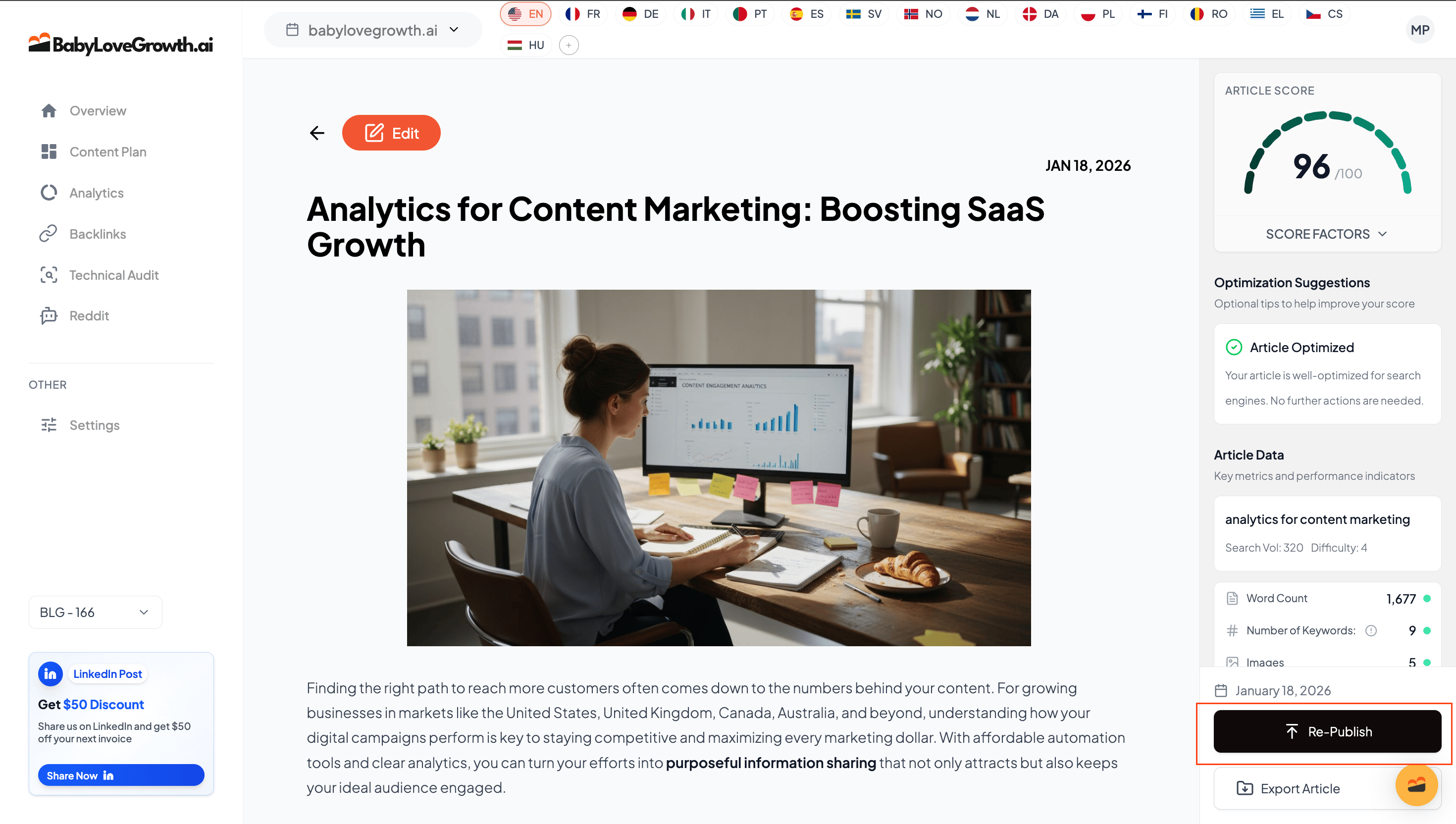
With Automatically Publish on (toggle at the top of the Integrations page), new articles publish to GoHighLevel on their own. To verify the connection right away:
Go to your Content Plan
- Publish or re-publish any article
In GoHighLevel, open Sites → Blogs to confirm the article appears (live if Publish immediately, otherwise as a draft)
Tips & Best Practicesv
- Create your blog in GoHighLevel before connecting so it appears in the dropdown
Use Save as draft if you want to review articles before they go live
- Keep your Private Integration token secure and never share it
Enable Remove first image if your blog theme already displays hero images
Troubleshooting & FAQv
Blogs and authors not loading?
Make sure you've entered both the Location ID and Private Integration token correctly. Wait a few seconds for the dropdowns to populate.
Connection fails with "Invalid credentials"?
Double-check your Location ID (Settings → Business Profile) and token (starts with
pit-). Ensure your token has the required blog scopes.
Blog dropdown is empty?
Create at least one blog in GoHighLevel (Sites → Blogs) first, then reopen the wizard.
Which scopes do I need?
All seven blog scopes: blogs/post.write, blogs/post-update.write,
blogs/check-slug.readonly, blogs/category.readonly,
blogs/author.readonly, blogs/posts.readonly, and
blogs/list.readonly.
Can I use the same token for multiple locations?
No. Each location needs its own Private Integration token. Connect a separate integration for each GoHighLevel location.
Will articles go live immediately?
Only if you choose Publish immediately. Choose Save as draft to review in GoHighLevel first.
What if I regenerate my token?
The old token stops working immediately. Paste the new token via Manage.
Can I change the author after connecting?
Yes. Open Manage on the GoHighLevel card, pick a different author, and save.
Do I need a GoHighLevel Agency account?
No. Both Agency and Location accounts work — you just need access to create Private Integrations and manage blogs.
Need more help?
Contact support via the chat icon in the bottom-right corner.