
WordPress
Connect BabyLoveGrowth to WordPress with our official plugin and publish on auto-pilot.
The WordPress integration uses our official plugin to publish articles directly to your site. Once connected, articles are published automatically every day.
Integration Video
How to Connect WordPress
Open Settings → Integrations, find WordPress under the CMS tab, and click Connect to launch the setup wizard. The wizard walks you through 6 short steps, mirrored below.
The WordPress card shows Awaiting test until you publish your first article in Step 5. Once that succeeds it flips to Connected; if a publish fails it shows Action needed. Click Manage any time to reopen the wizard.
What You Needv
WordPress admin access (to install and configure plugins)
Plugins enabled (self-hosted WordPress or a plan that supports plugins)
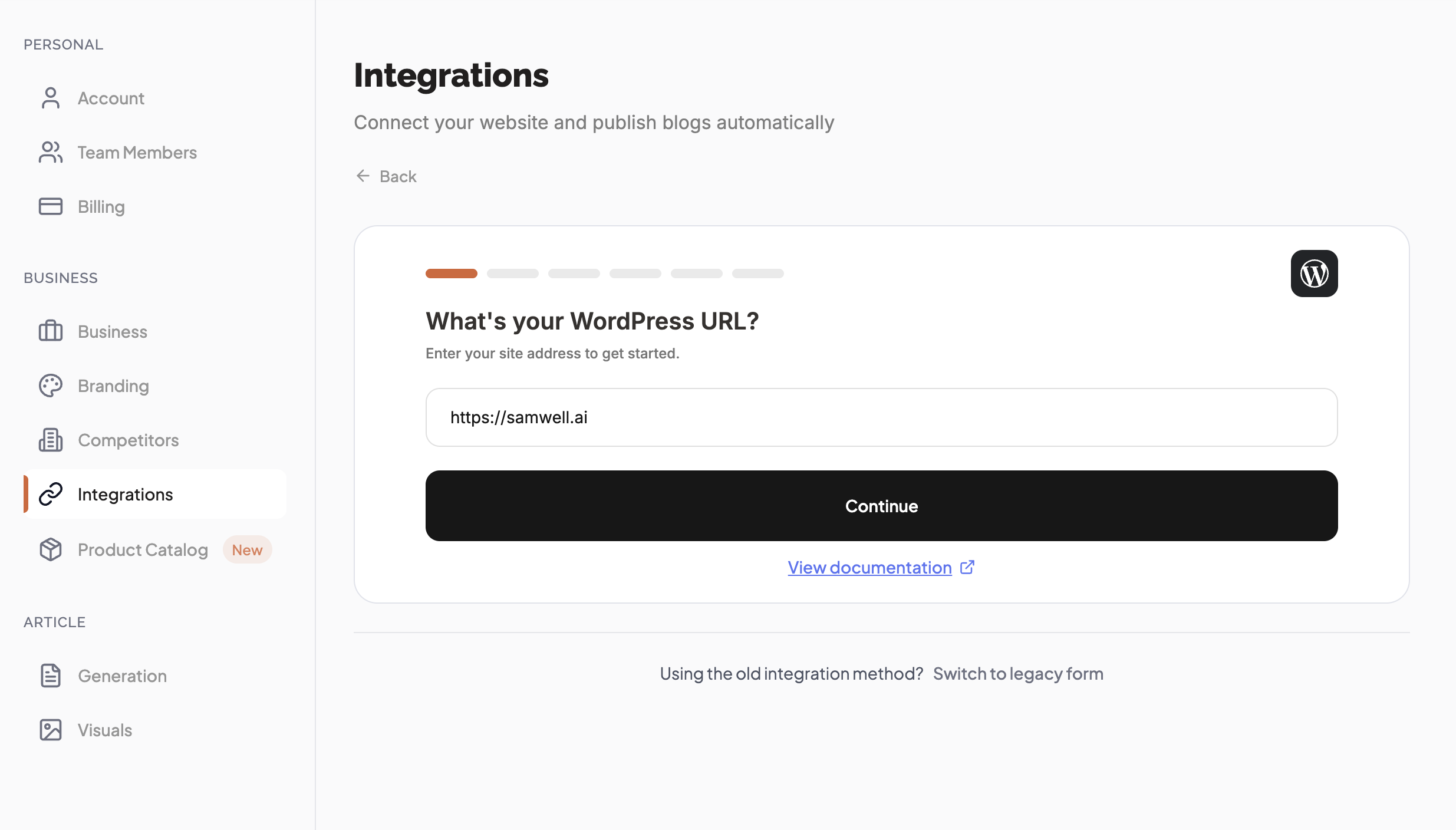
Step 1: Enter your WordPress URLv
In the wizard, type your WordPress site address — for example
https://www.yoursite.com/blog — and click Continue.
BabyLoveGrowth uses this to generate a direct install link, so there's no manual
searching in WordPress.
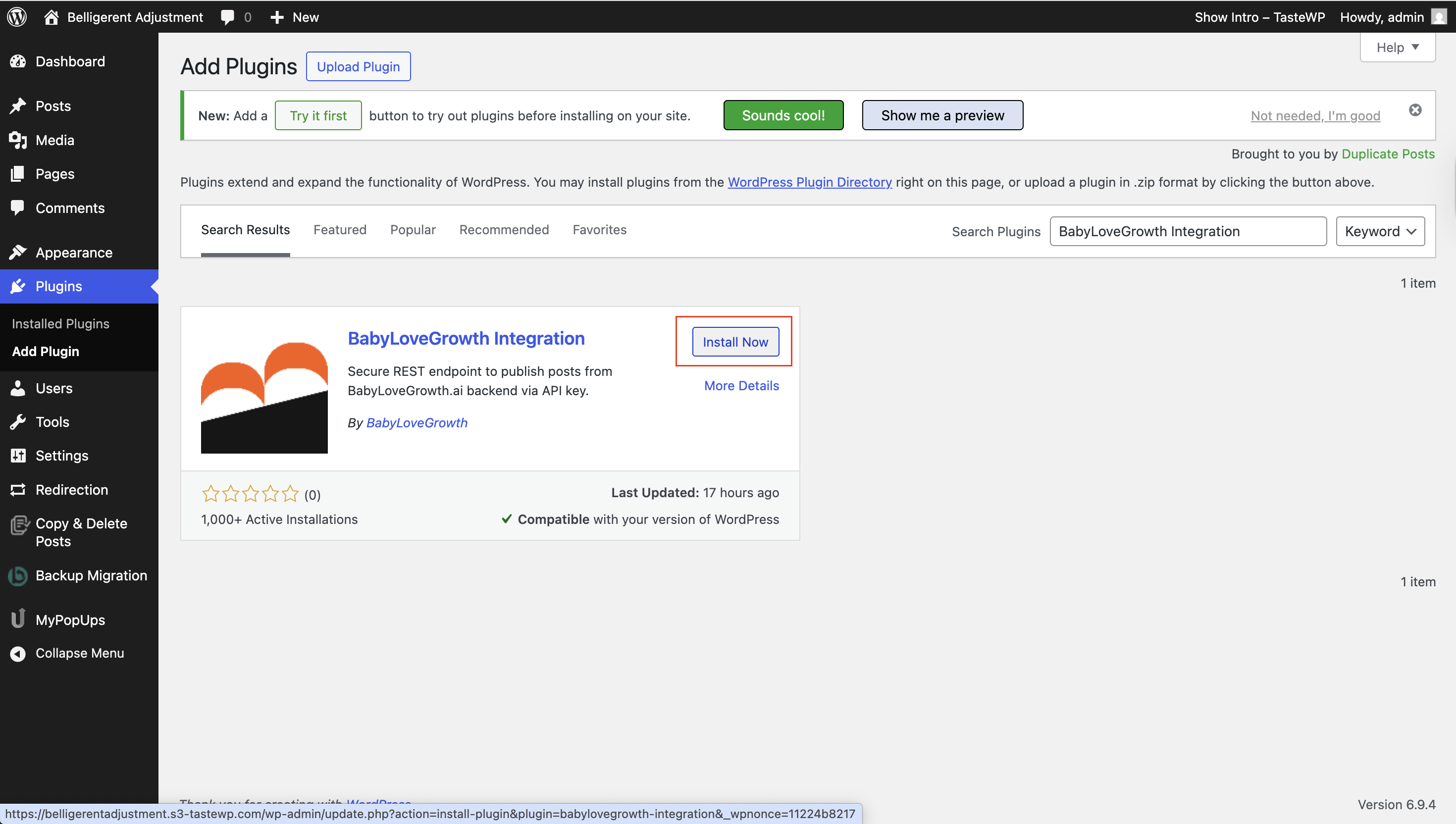
Step 2: Install the pluginv
Click Get Plugin in the wizard. It opens your WordPress admin straight to the plugin page. Find the BabyLoveGrowth Integration plugin and click Install Now.
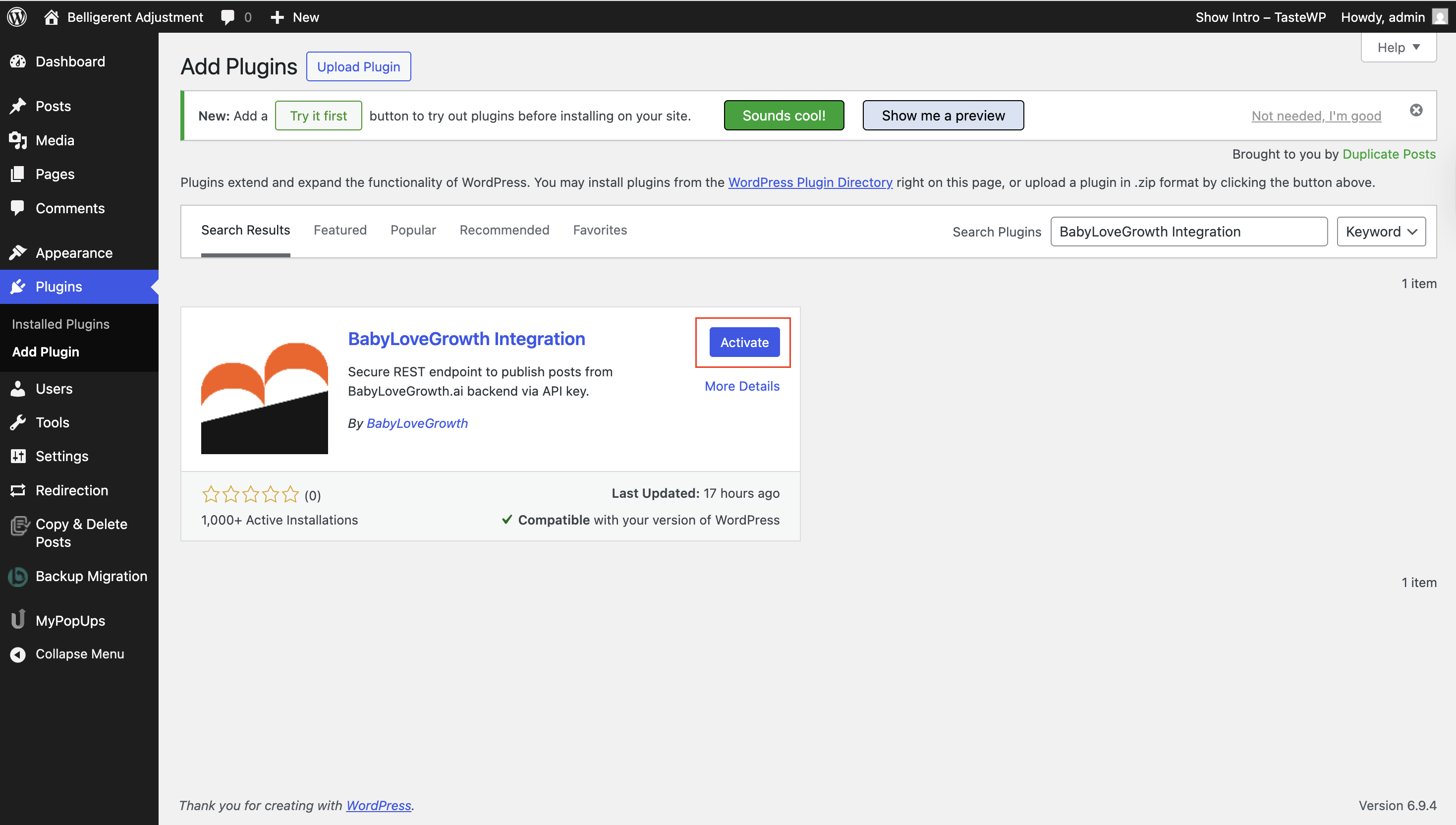
Step 3: Activate the pluginv
Once the plugin is installed, click Activate to turn it on. Back in the wizard, click I've activated the plugin to continue.
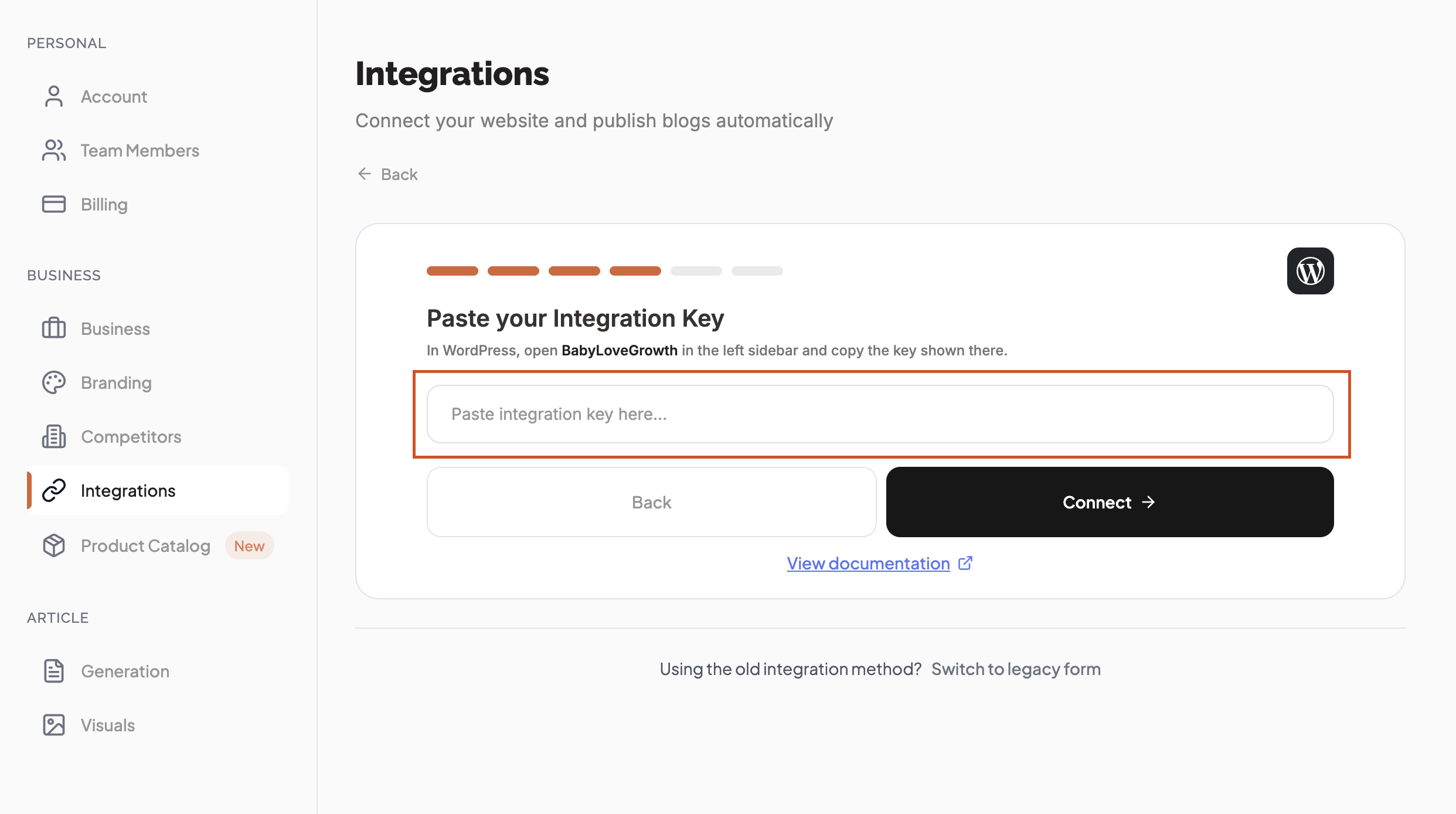
Step 4: Paste your Integration Keyv
In WordPress, open BabyLoveGrowth in the left sidebar and copy the Integration Key shown there.
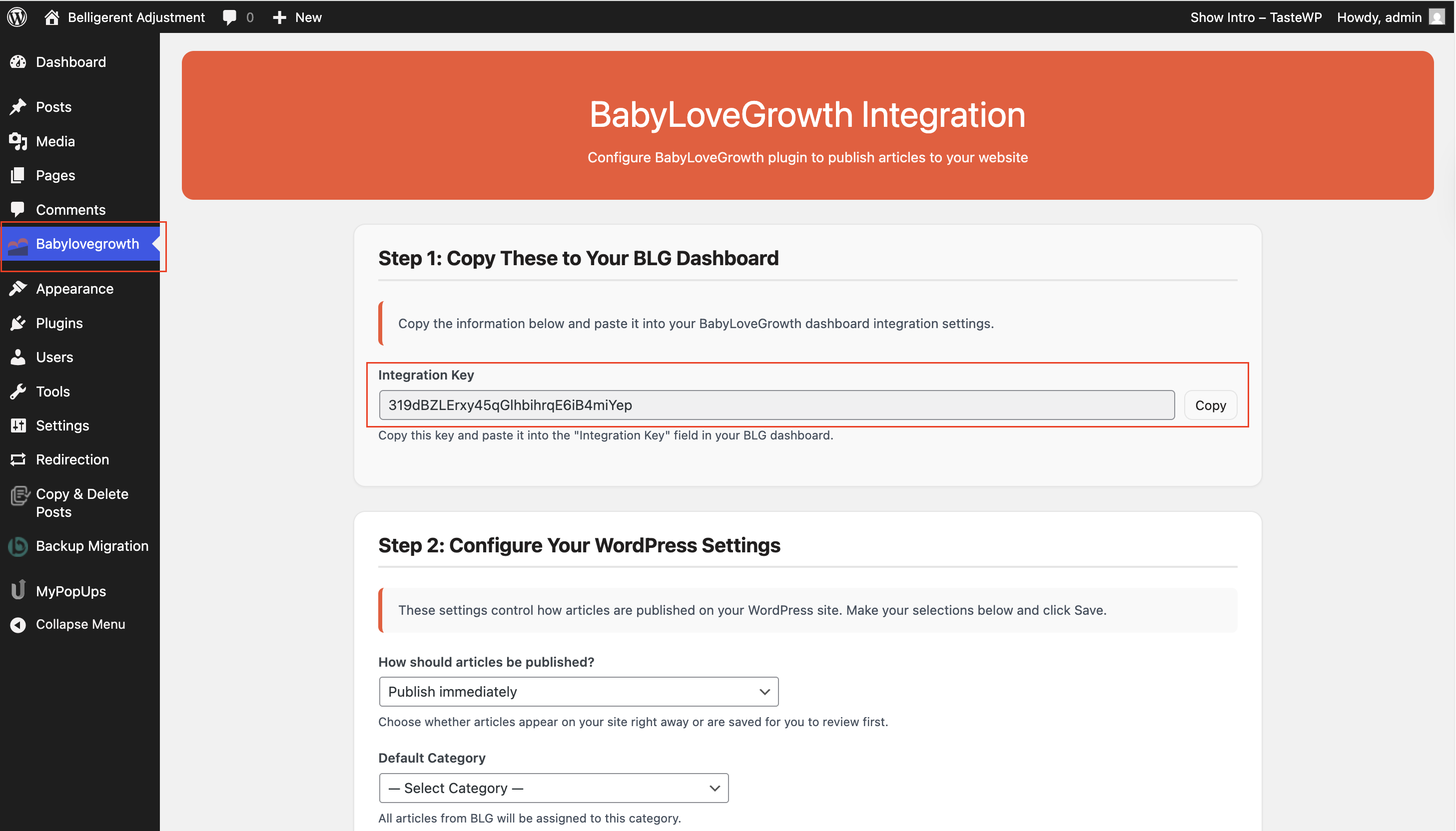
Switch back to the wizard, paste the key into the Integration Key field, and click Continue.
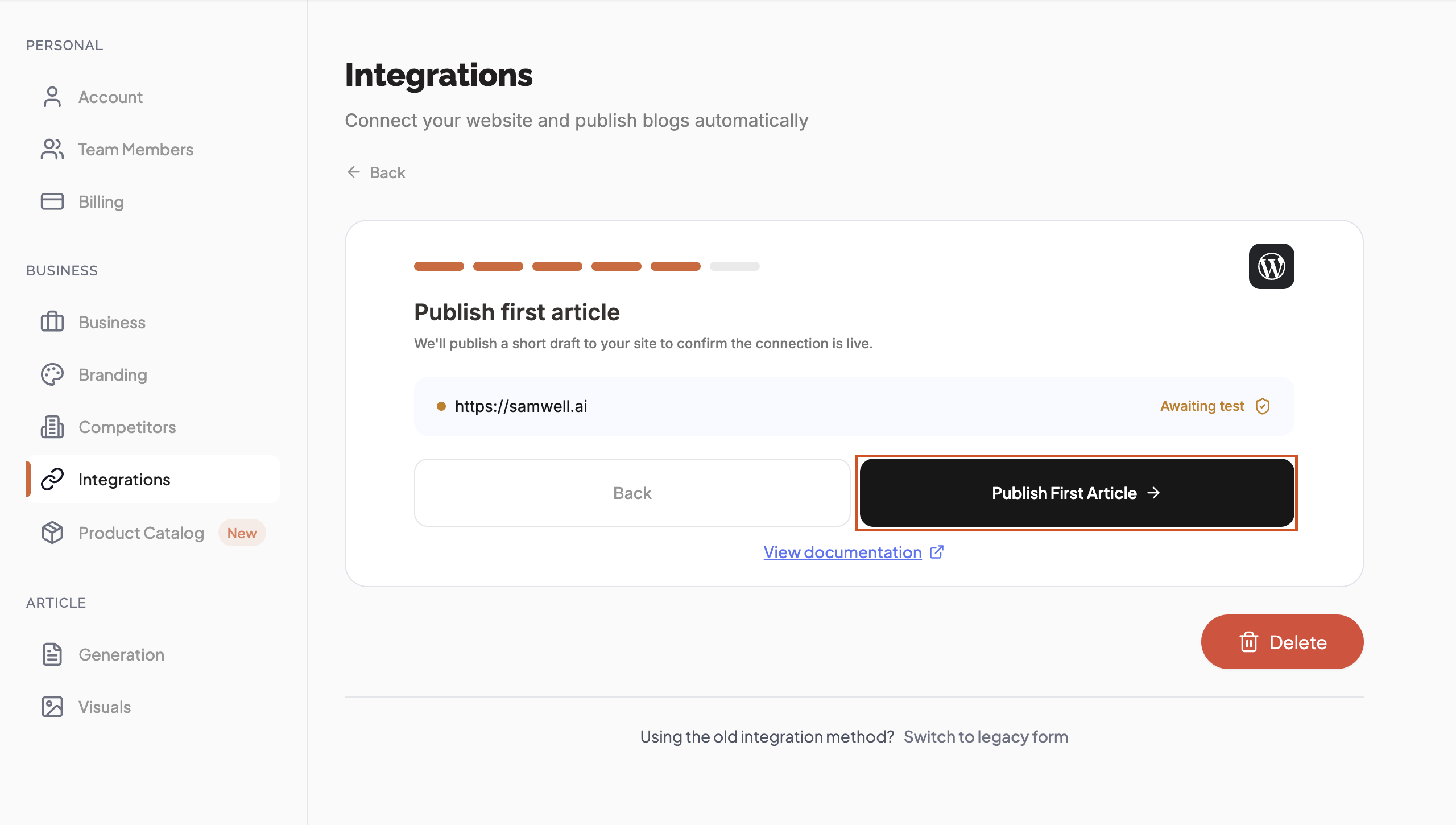
Step 5: Publish your first articlev
Click Publish first article. We publish a short draft to your site to confirm the connection is live. The status changes from Awaiting test to Connected when it succeeds.
Step 6: WordPress connectedv
That's it — new articles now publish automatically every day. Click Done to save (or Back to change settings). Visit your site to confirm the test article appeared.
Post Settings (Categories, Author, Tags)v
Where to configure
In your WordPress plugin settings (under your WordPress admin), set the defaults you want BabyLoveGrowth to apply when publishing new posts.
What you can select
Category — choose the default WordPress category to apply to new posts.
Tags — choose one or more WordPress tags to apply to new posts.
Author — published posts are assigned to the WordPress user configured in the plugin. To change the author, update it in the WordPress plugin.
Tip: If you leave Category/Tags empty in the plugin, WordPress uses its default behavior (for example, an "Uncategorized" category, or no tags).
Troubleshooting & FAQv
Card shows "Action needed" or the test fails?
Regenerate the Integration Key in the WordPress plugin, reopen the wizard via Manage, paste the new key, and publish the first article again.
Why am I getting a WordPress authentication error?
This usually means something is blocking the connection between BabyLoveGrowth and your WordPress site. The most common causes are security plugins (like Wordfence, VPN Guard, Proxy Blockers, Akismet, or Jetpack) that block external REST API connections. Try temporarily disabling these to see if the connection works.
Firewall/security plugin blocks requests?
You may need to whitelist BabyLoveGrowth so our server can connect to your site. If you need help, contact support from the chat icon in the bottom-right corner.
Is the plugin required?
Yes. Use the official BabyLoveGrowth Integration plugin to get the Integration Key.
Can I reconnect if I rotate keys?
Yes. Regenerate the key in the plugin, then paste it into the wizard via Manage.
Do I need to change my theme?
No. We publish standard WordPress posts; your theme controls presentation.
If I edit the article, can I republish?
Yes, re-publishing updates the article.
Do I need a specific WordPress plan?
Any WordPress site that allows plugins works (self-hosted or plans with plugin support).
Need more help?
Contact support via the chat icon in the bottom-right corner.