
Shopify Product Catalog
Connect your Shopify store and sync products into BabyLoveGrowth.
The Shopify Product Catalog integration lets BabyLoveGrowth import products from your Shopify store. Once connected, you can sync your catalog on demand and use product data across the platform.
Separate from blog publishing
Product catalog uses its own Shopify app credentials and scopes. It is independent of the
Shopify blog publishing integration
. You can connect one, both, or neither.
Setup Instructions
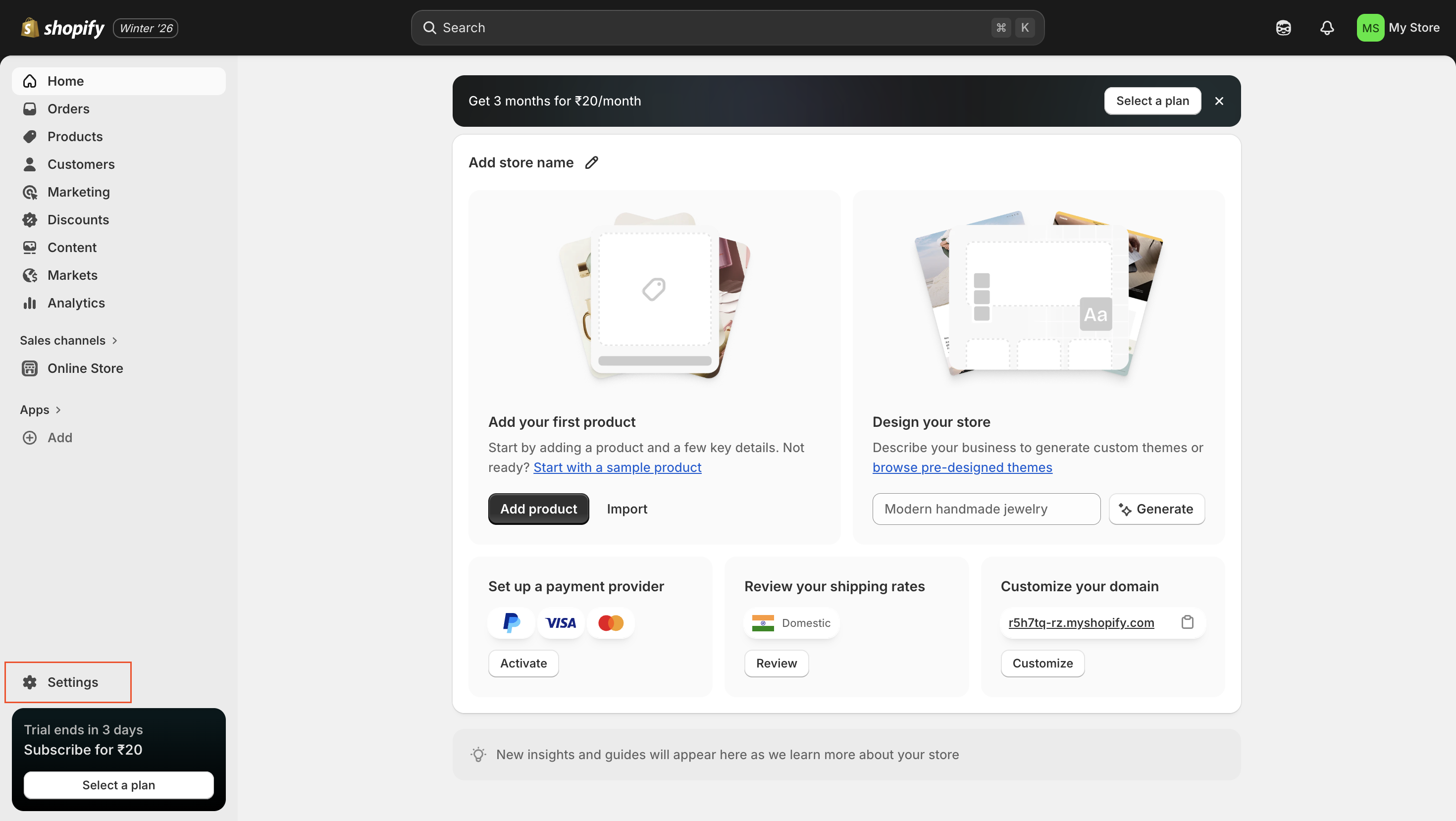
To begin, go to Settings → Product Catalog and click Connect Shopify. Then follow the steps below.
What You Needv
Shopify admin access with permission to create apps
Store name from your .myshopify.com domain (e.g.,
na70yq-bnfromna70yq-bn.myshopify.com)Product read permissions on your Shopify app ( read_products and read_inventory)
1. Get Your Store Namev
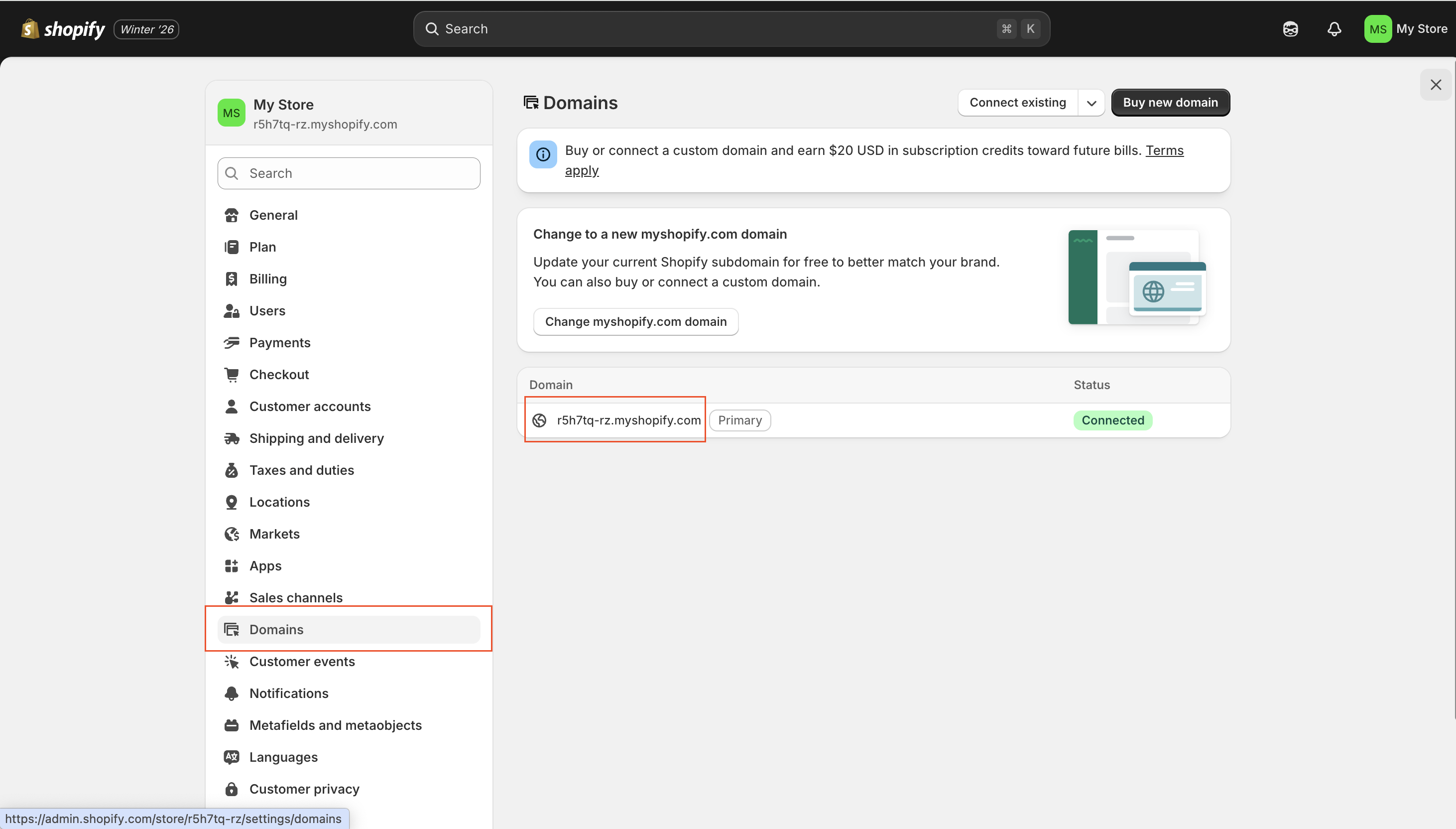
In Shopify Admin, go to Settings → Domains
Find your
.myshopify.comdomain (e.g.,na70yq-bn.myshopify.com)Copy the part before
.myshopify.com(e.g.,na70yq-bn). This is your Store Name for BabyLoveGrowth
2. Create a Shopify App in Dev Dashboardv
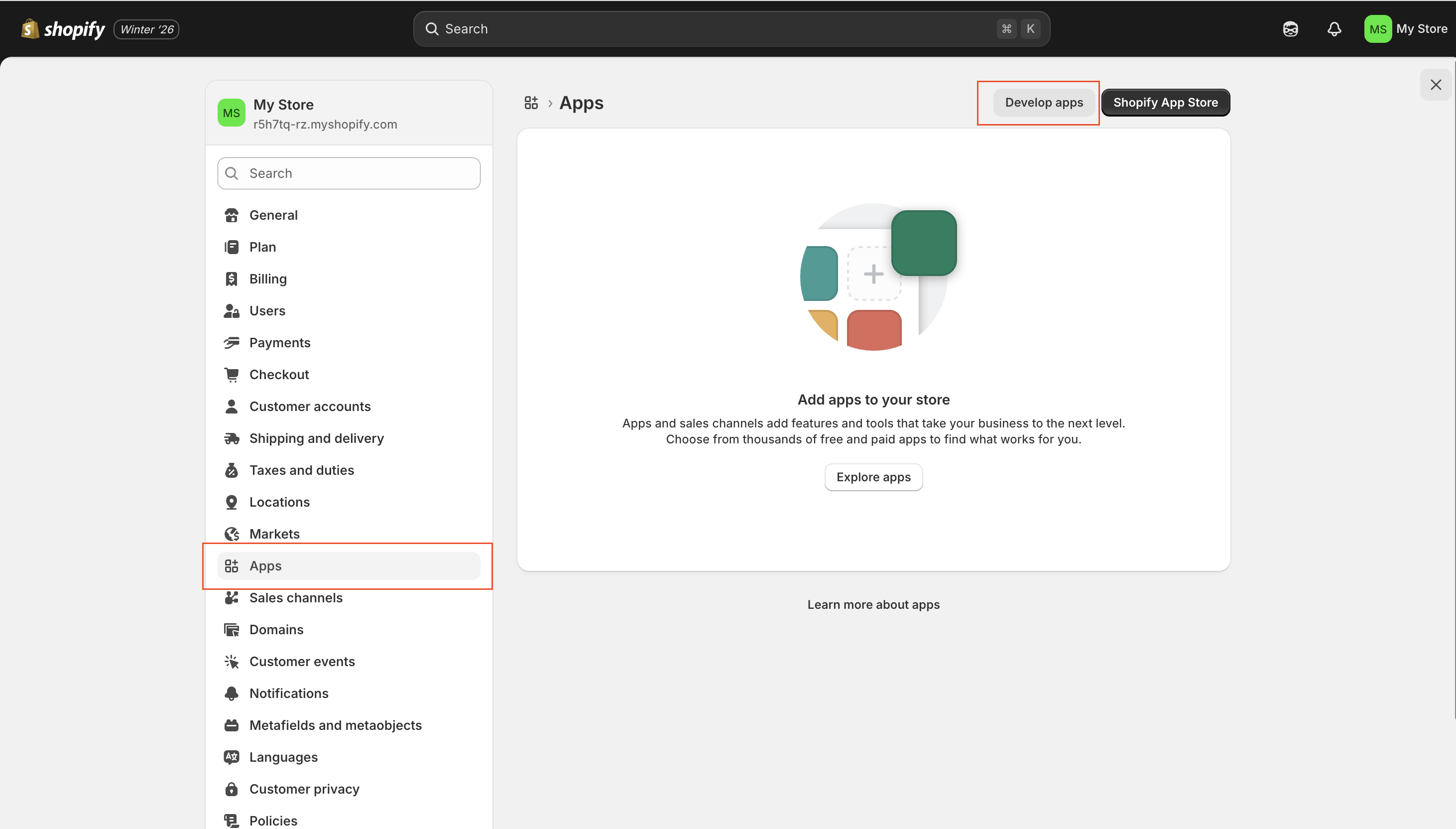
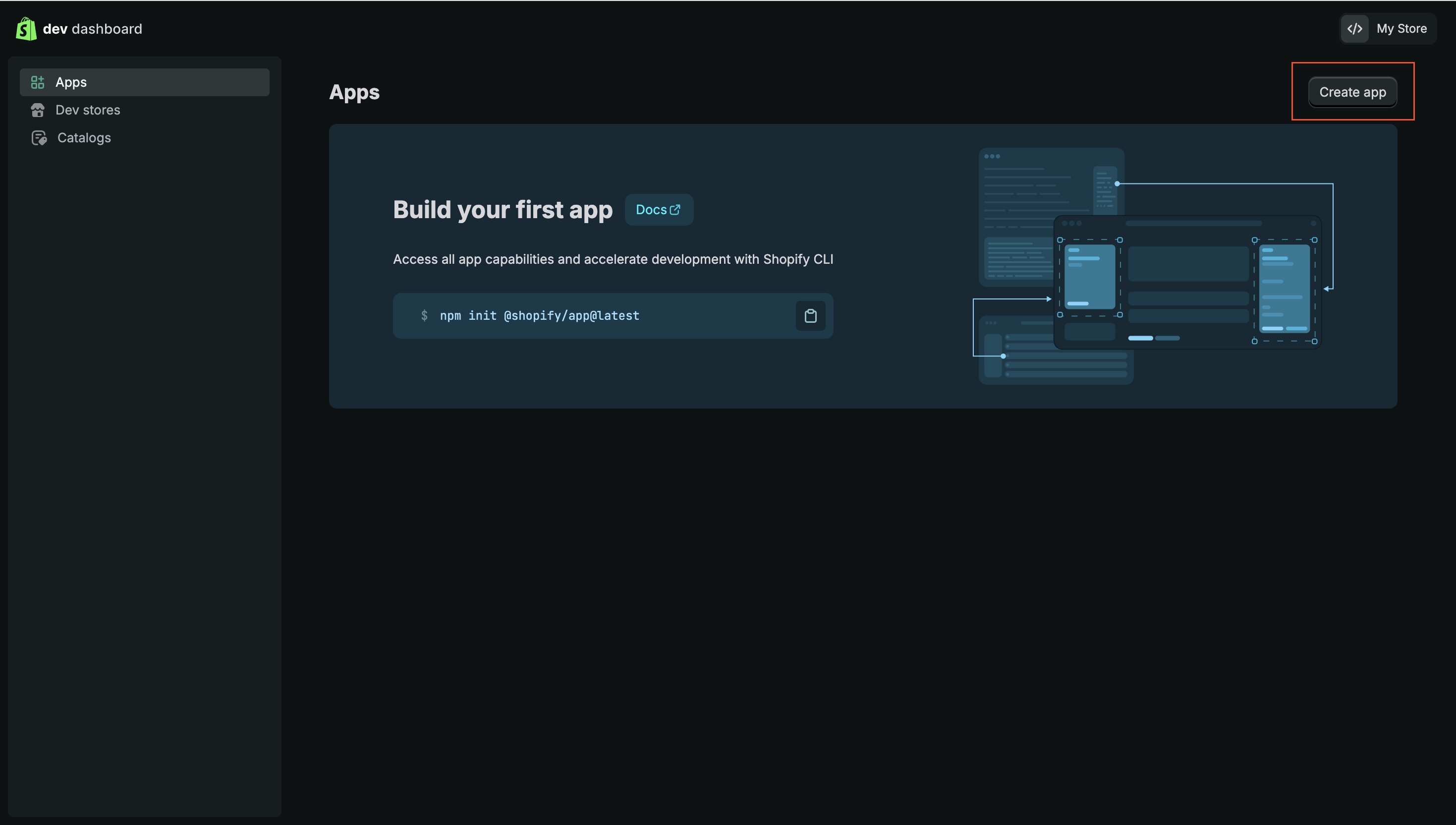
In Shopify Admin, go to Apps, then click Develop apps
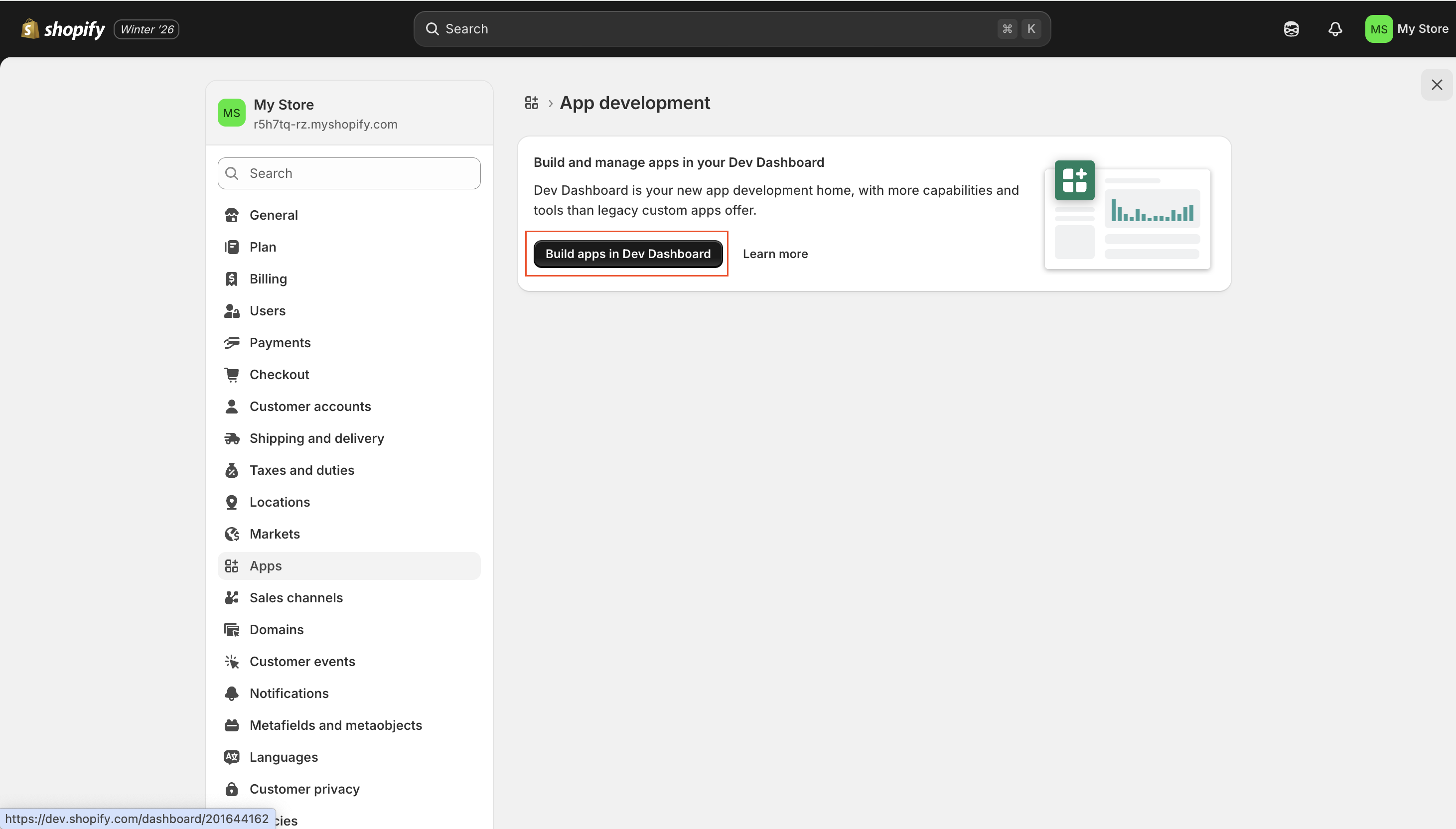
Click Build apps in Dev Dashboard (opens dev.shopify.com/dashboard)
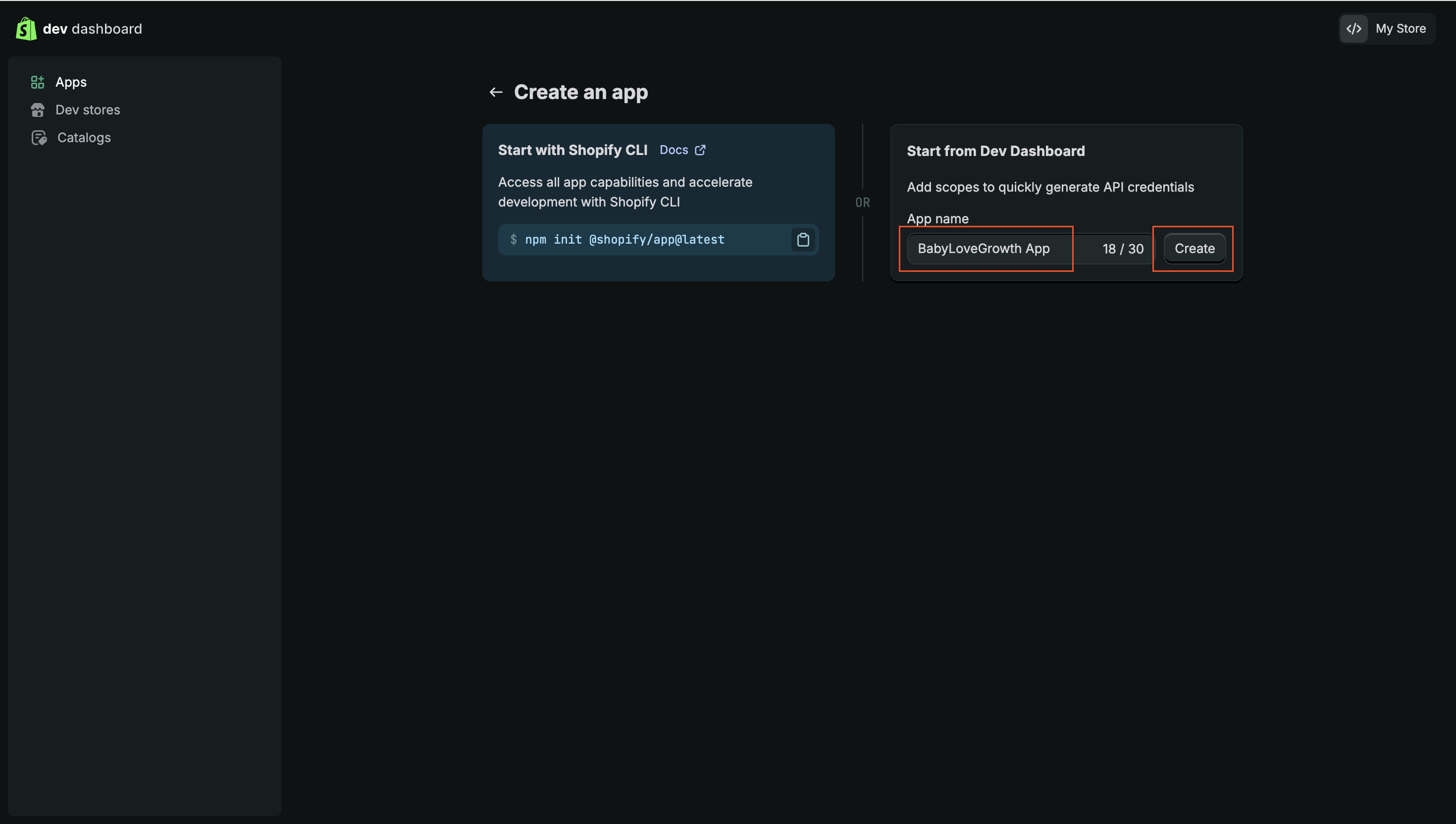
Click Create app and name it (e.g., "BabyLoveGrowth Product Catalog")
3. Set Scopes (Products Only)v
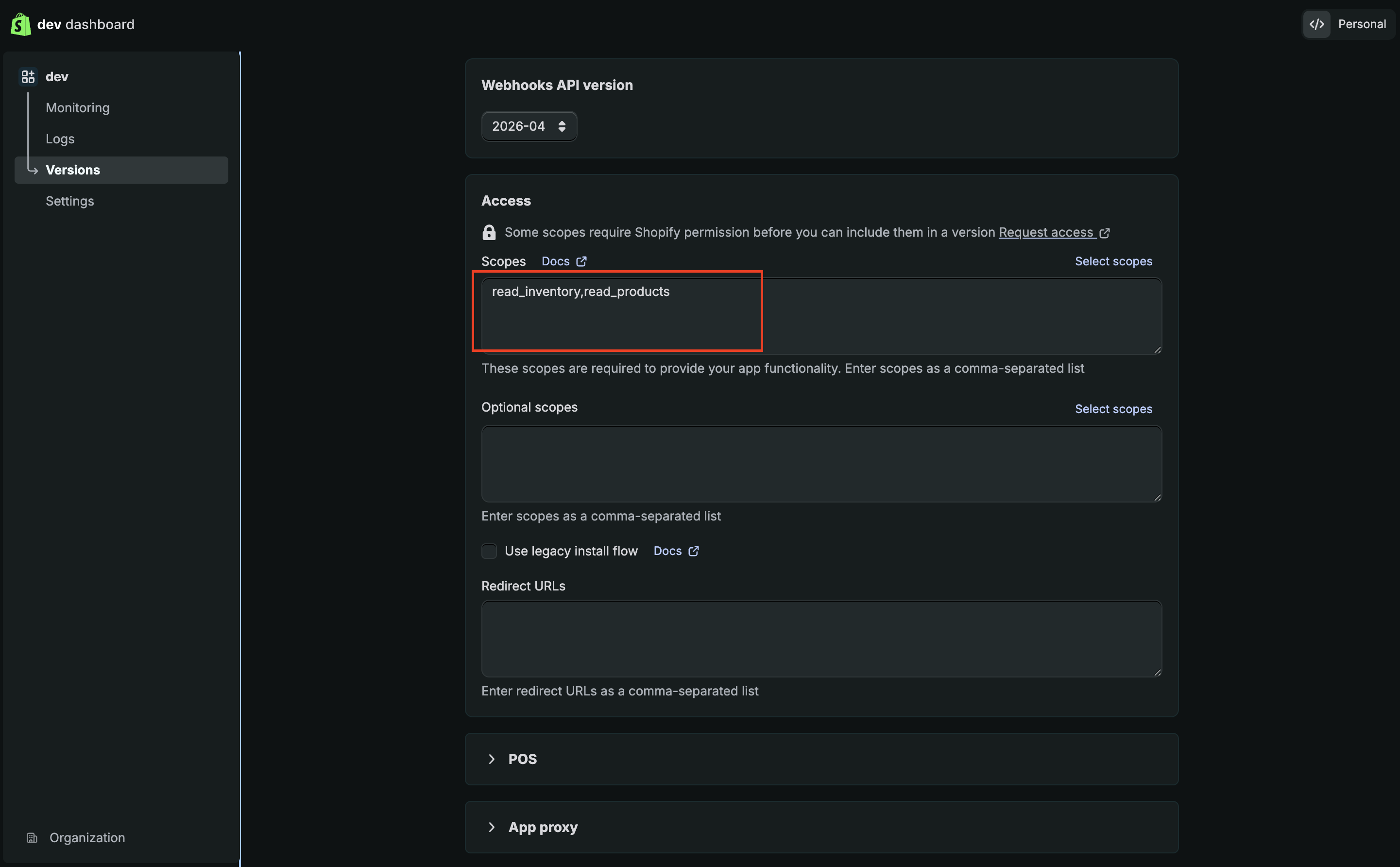
In the app, go to Access and click Select scopes
Search "products" and enable: read_products
Search "inventory" and enable: read_inventory
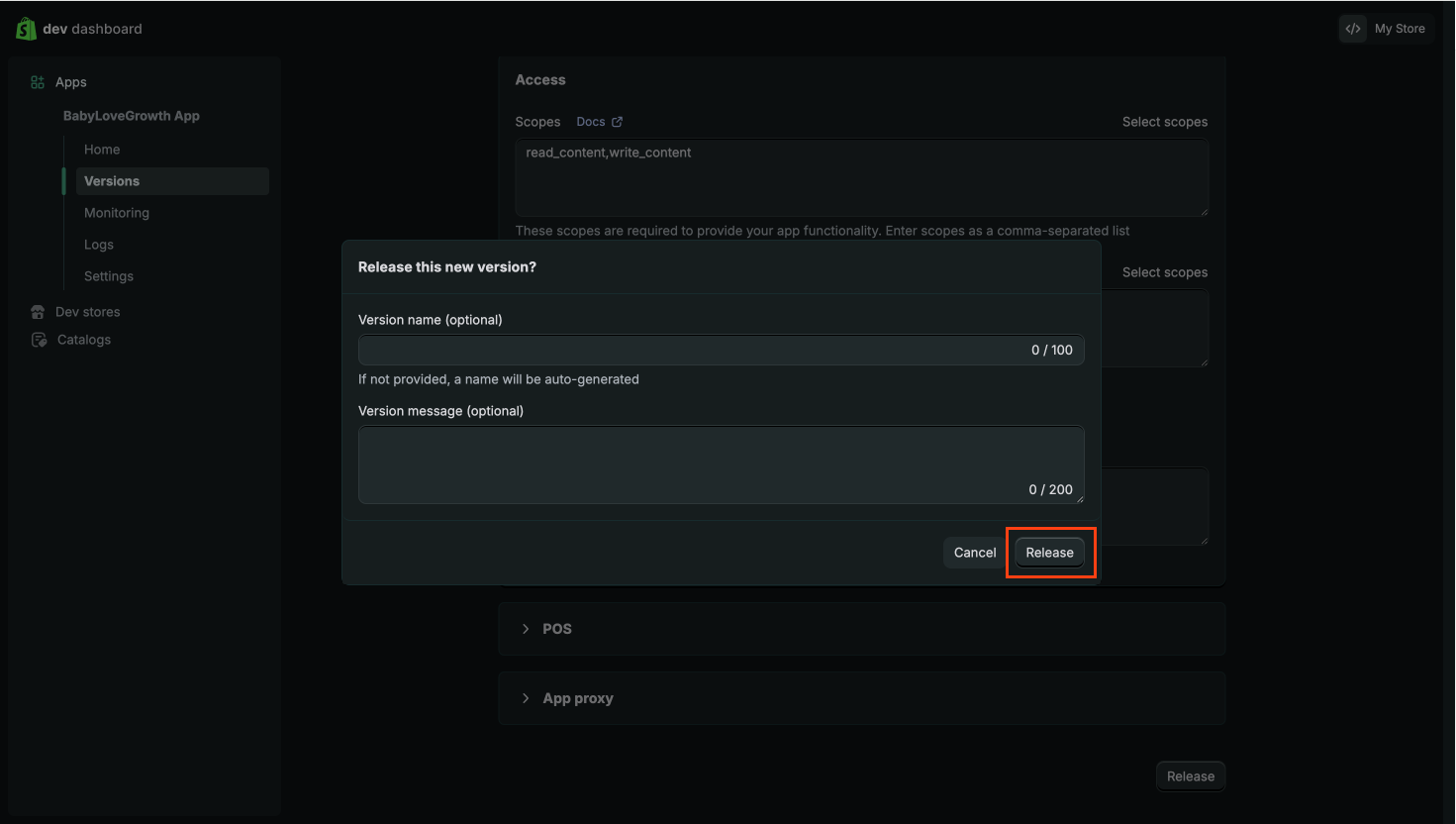
Click Done, then click Release (version name can be left blank) and confirm
4. Install the Appv
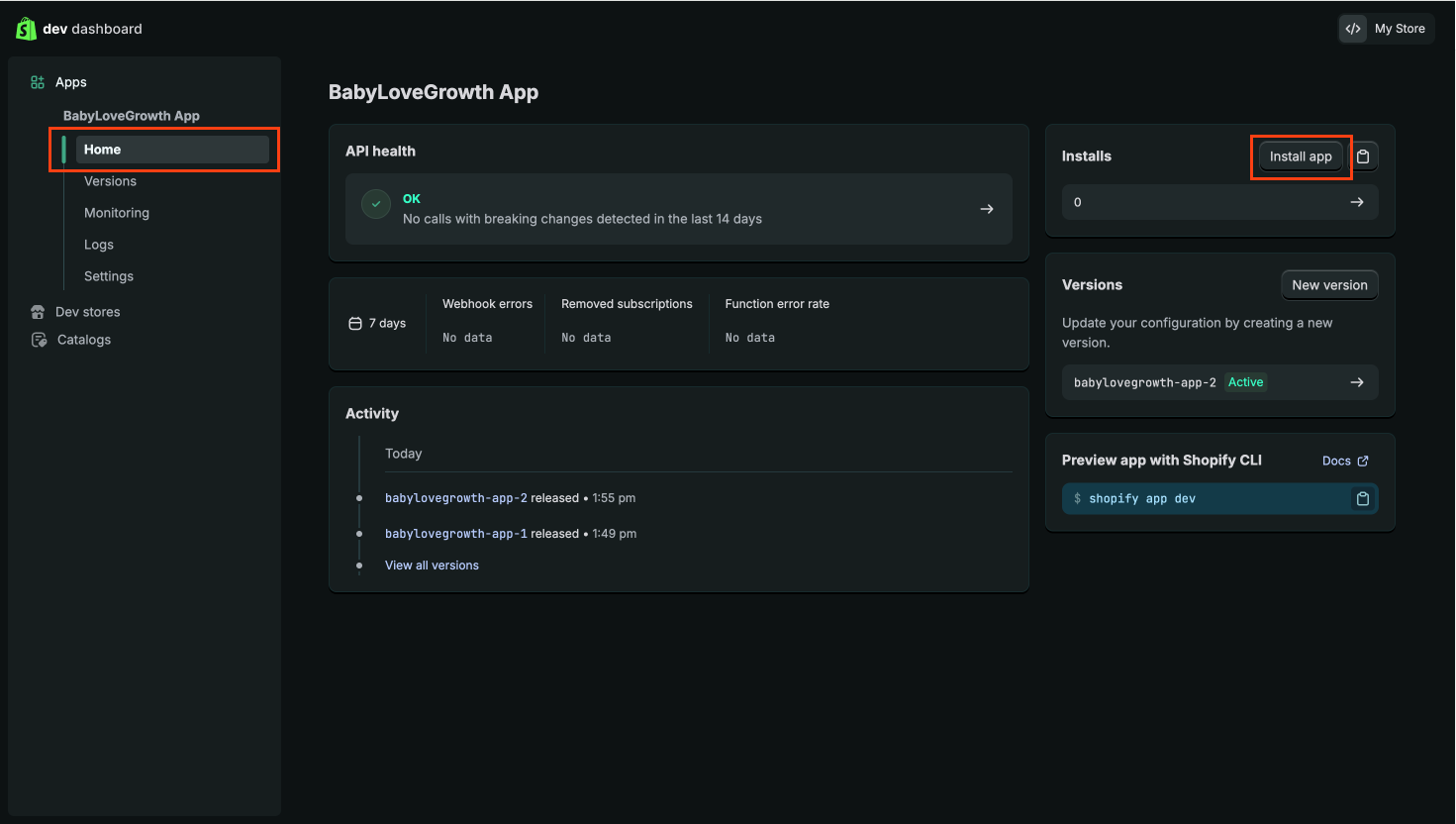
Click Home in the app sidebar
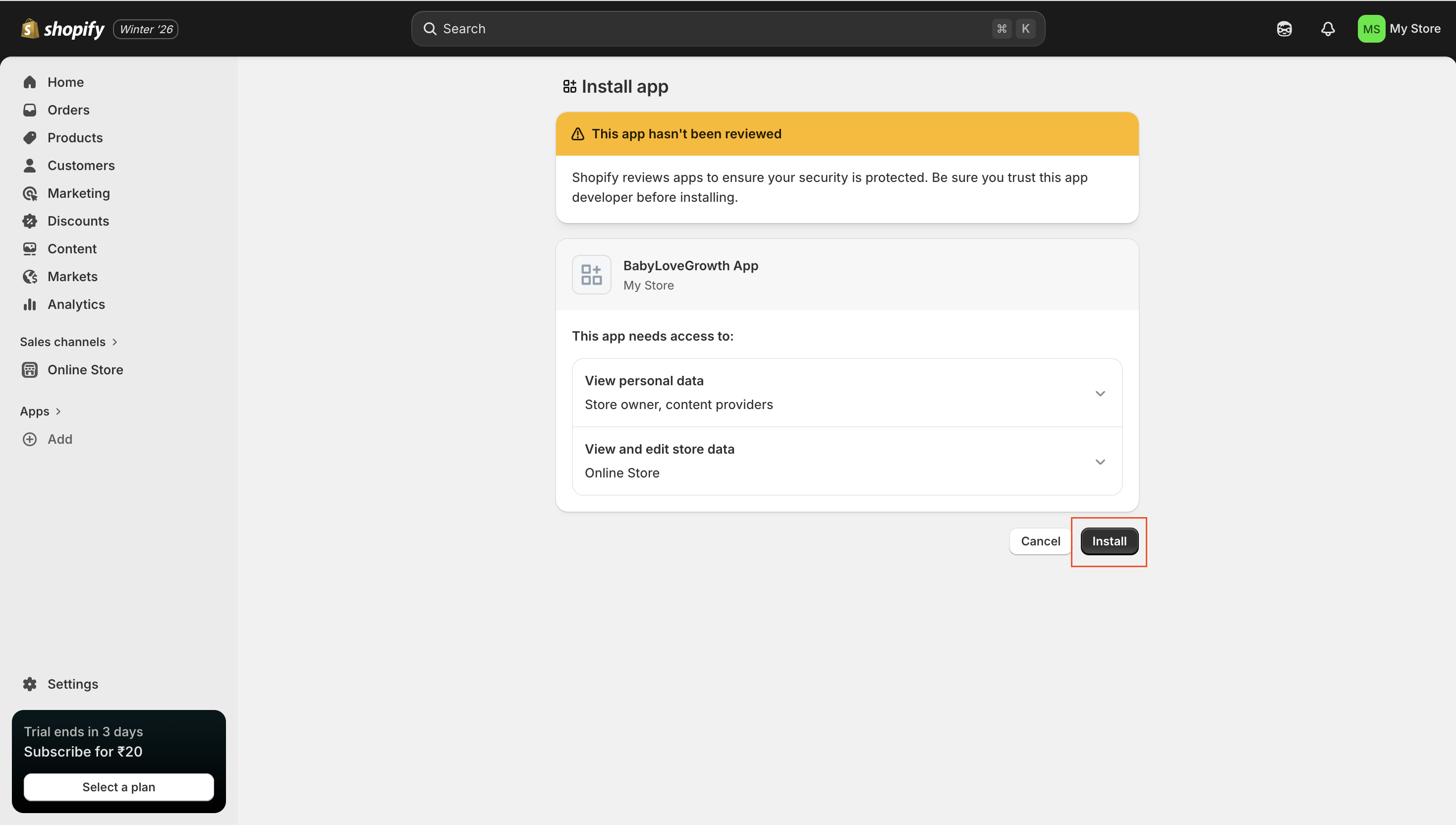
Click Install app (top right) and confirm in your Shopify store dashboard
Verify the app shows under Apps in your Shopify store
5. Copy Client ID and Client Secretv
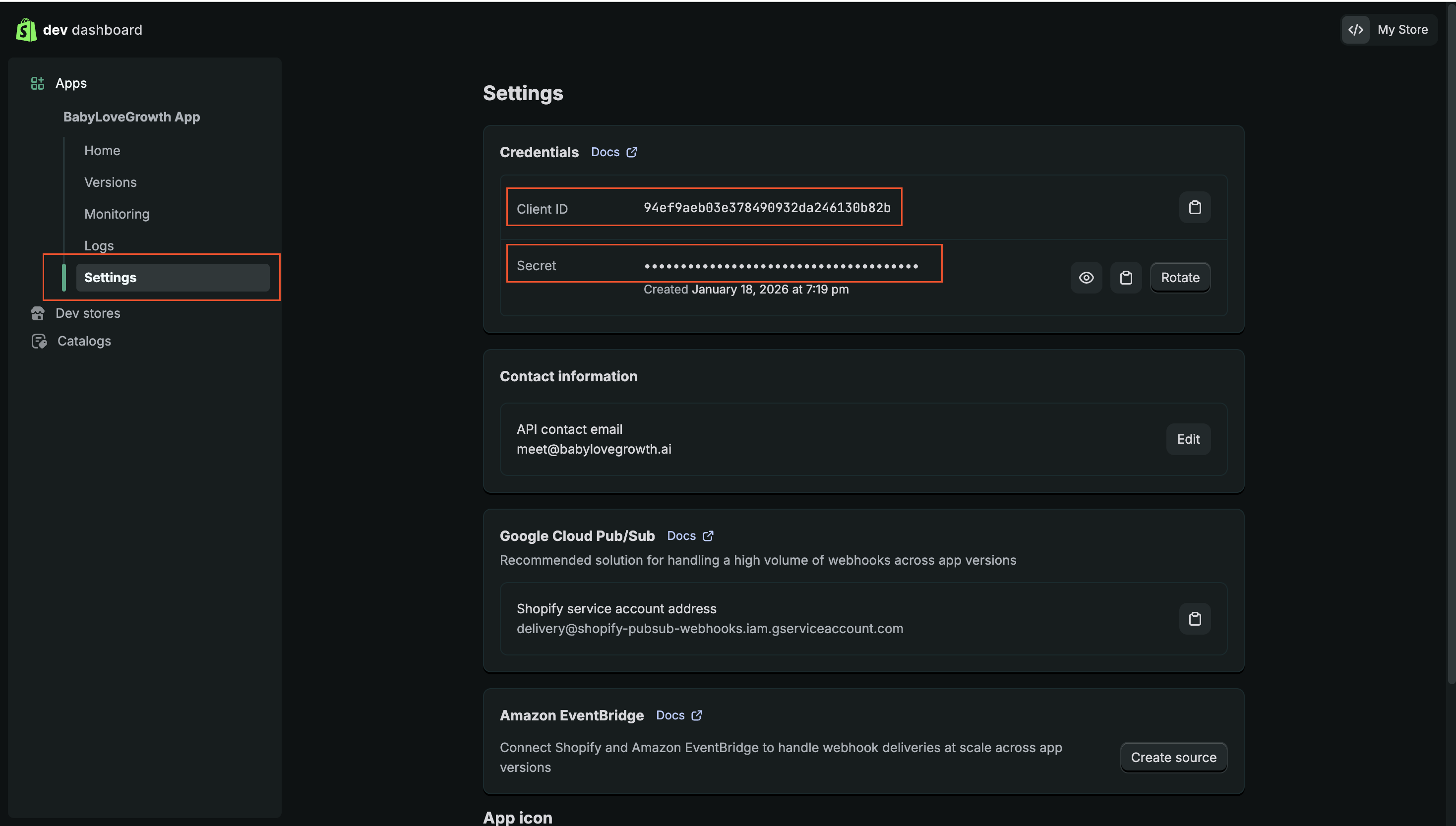
- Back in the Shopify Dev Dashboard, open your app
Click Settings in the app sidebar
Copy the Client ID and Client Secret
6. Connect in BabyLoveGrowthv
In the BabyLoveGrowth dashboard, open Settings → Product Catalog
Click Connect Shopify
Enter Store Name (from Step 1), Client ID, and Client Secret
Save. After connecting, click Sync Catalog to import your products
Once connected, click Sync Catalog any time to refresh products from Shopify. Manual products you add separately are kept even if you disconnect Shopify.
Tips & Best Practicesv
Use your
.myshopify.comstore name (not a custom domain) for the connectionInstall the app on your store before connecting — Client ID and Secret alone are not enough
Both read_products and read_inventory scopes are required for full product and variant data
- You can add manual products alongside synced Shopify products at any time
Troubleshooting & FAQv
Connection fails?
Re-check Store Name (from .myshopify.com), Client ID, and Client Secret. Confirm the app is installed on your store and scopes read_products and read_inventory are enabled.
Sync fails with inventory permission error?
Add the read_inventory scope to your Shopify app, release a new version, and reinstall if needed.
App not visible in store Apps?
Make sure you completed the Install step in the store dashboard.
Will disconnecting remove manual products?
No. Disconnecting Shopify only removes synced Shopify products. Manual entries are kept.
Do I need the blog publishing integration too?
No. Product catalog and blog publishing are separate. Connect product catalog only if you want to sync products.
Which store name do I enter?
The part before .myshopify.com (e.g., na70yq-bn).