Settings
Configure your account, manage your team, set up integrations, and control how articles are generated and styled.
Accountv
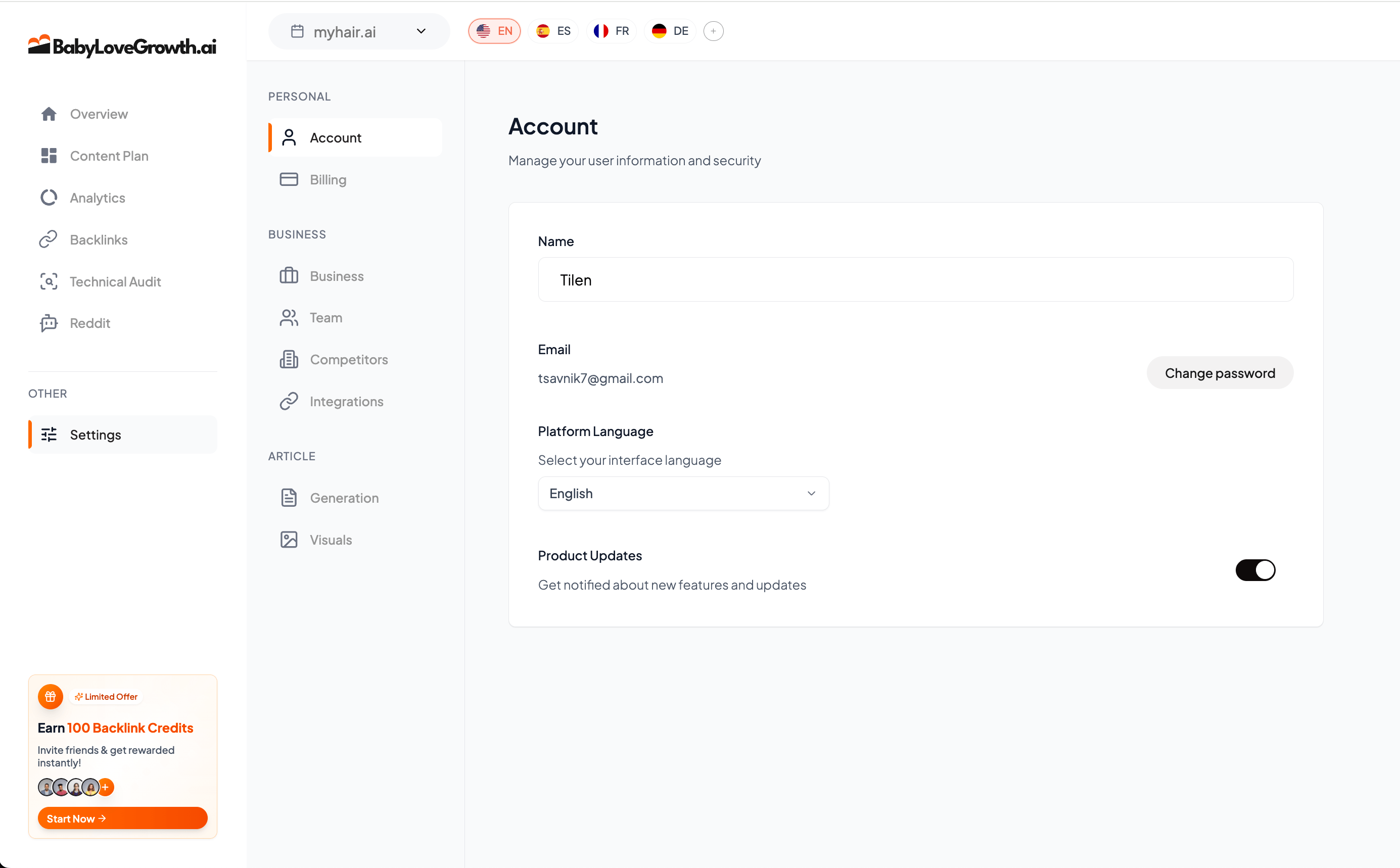
Name: Update your display name shown across the platform.
Email: Your login email address. Contact support to change this.
Change Password: Update your account password for security.
Dashboard Language: Select your preferred interface language (English, Spanish, French, German).
Product Updates: Toggle notifications about new features and updates.
Billingv
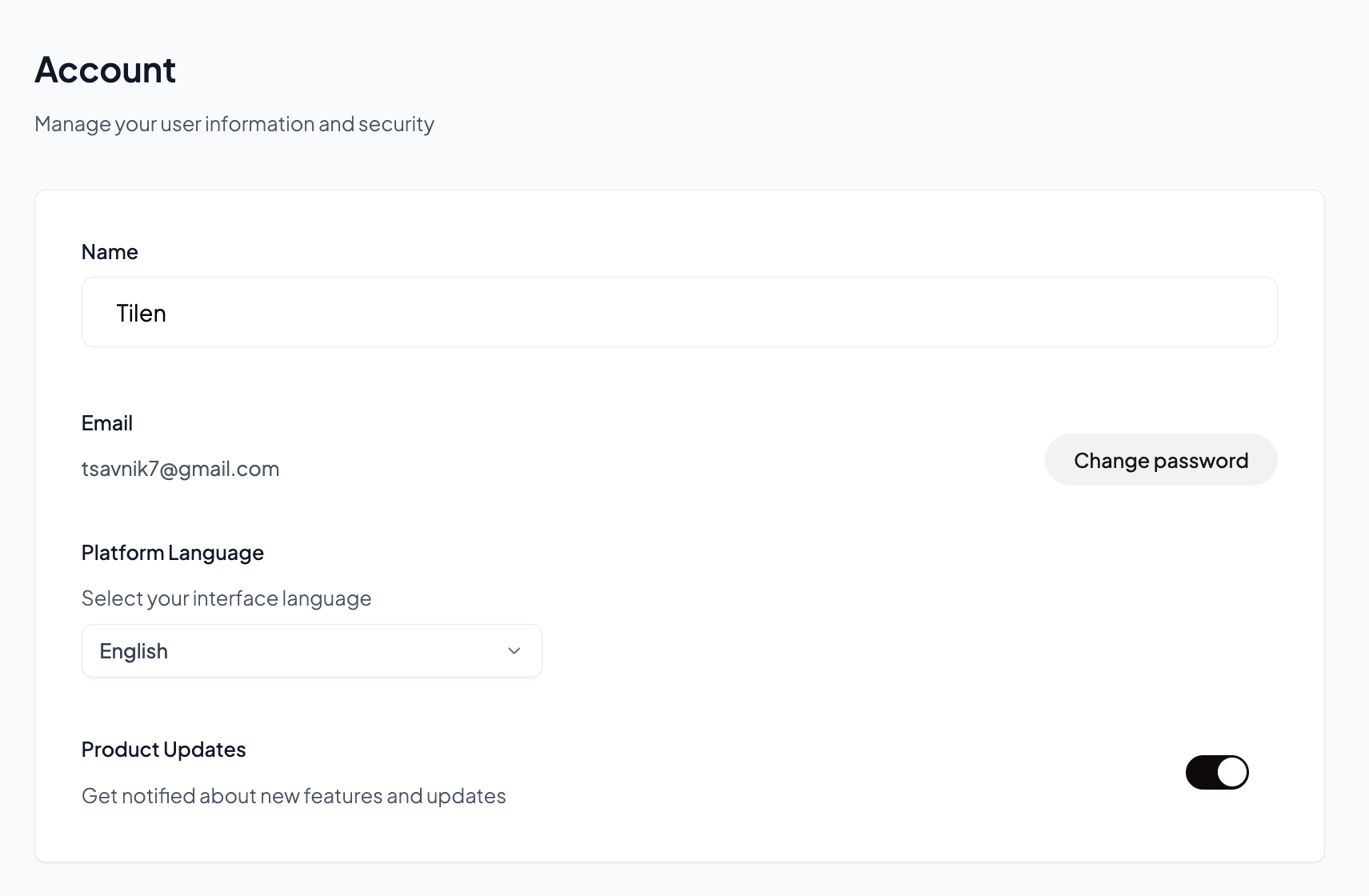
Current Plan: See your active subscription plan.
Next Billing Date: Know when your next payment is due.
Status: Check if your subscription is active, paused, or cancelled.
Manage Subscription: Upgrade, downgrade, or modify your plan.
Cancel Subscription: Cancel your subscription if needed.
Payment History: View all past invoices with dates, amounts, and status. Download invoice PDFs for your records.
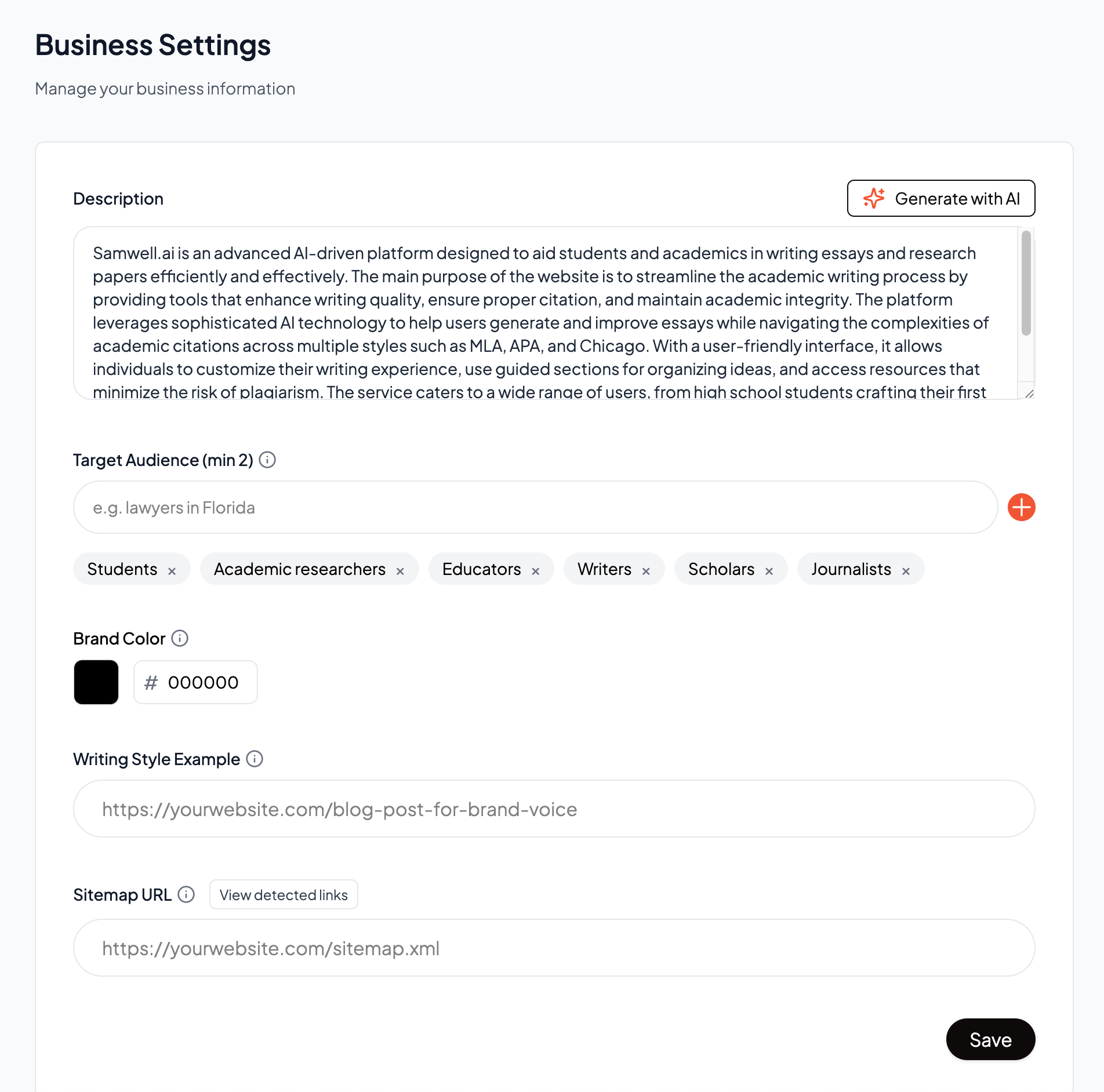
Businessv
Configure your business information to help the AI generate more relevant and targeted content.
Description: Describe your business, products, and services. Use the Generate with AI button to create a description automatically based on your website.
Target Audience: Define your ideal customer (e.g. "Business owners in London, UK")
Brand Color: Set your primary brand color using a hex code. This is used in generated visuals and article elements.
Writing Style Example: Provide a URL to an existing blog post that represents your preferred writing voice and tone.
Sitemap URL: Enter your sitemap URL so we can discover and index your existing content for internal linking.
Teamv
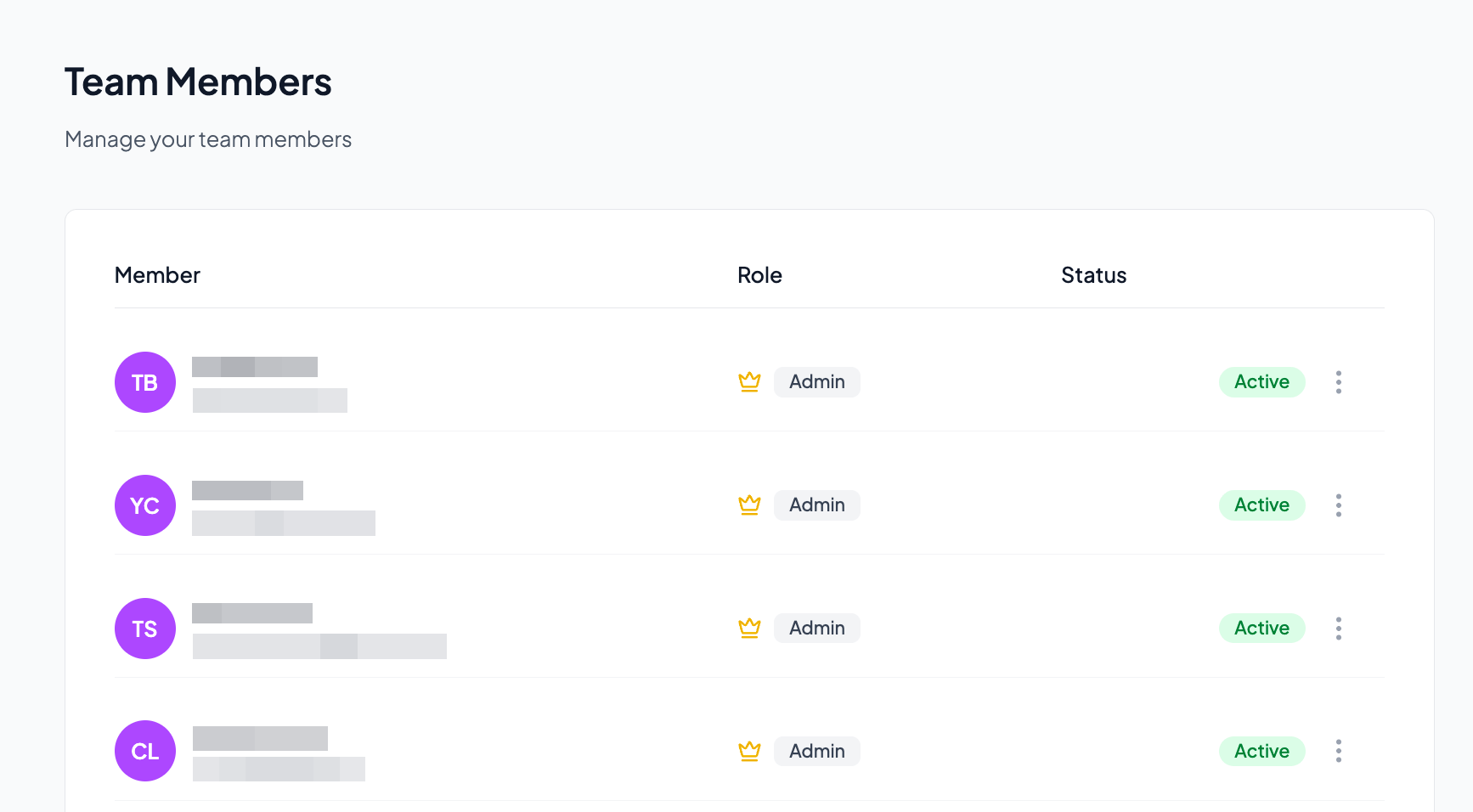
Member List: View all team members with their name, email, role, and status.
Roles: Assign Admin or Member roles. Admins have full access while Members have limited permissions.
Status: See who is Active or has a Pending invitation.
Invite Members: Add new team members by email. They will receive an invitation to join.
Remove Members: Remove team members who no longer need access.
Competitorsv
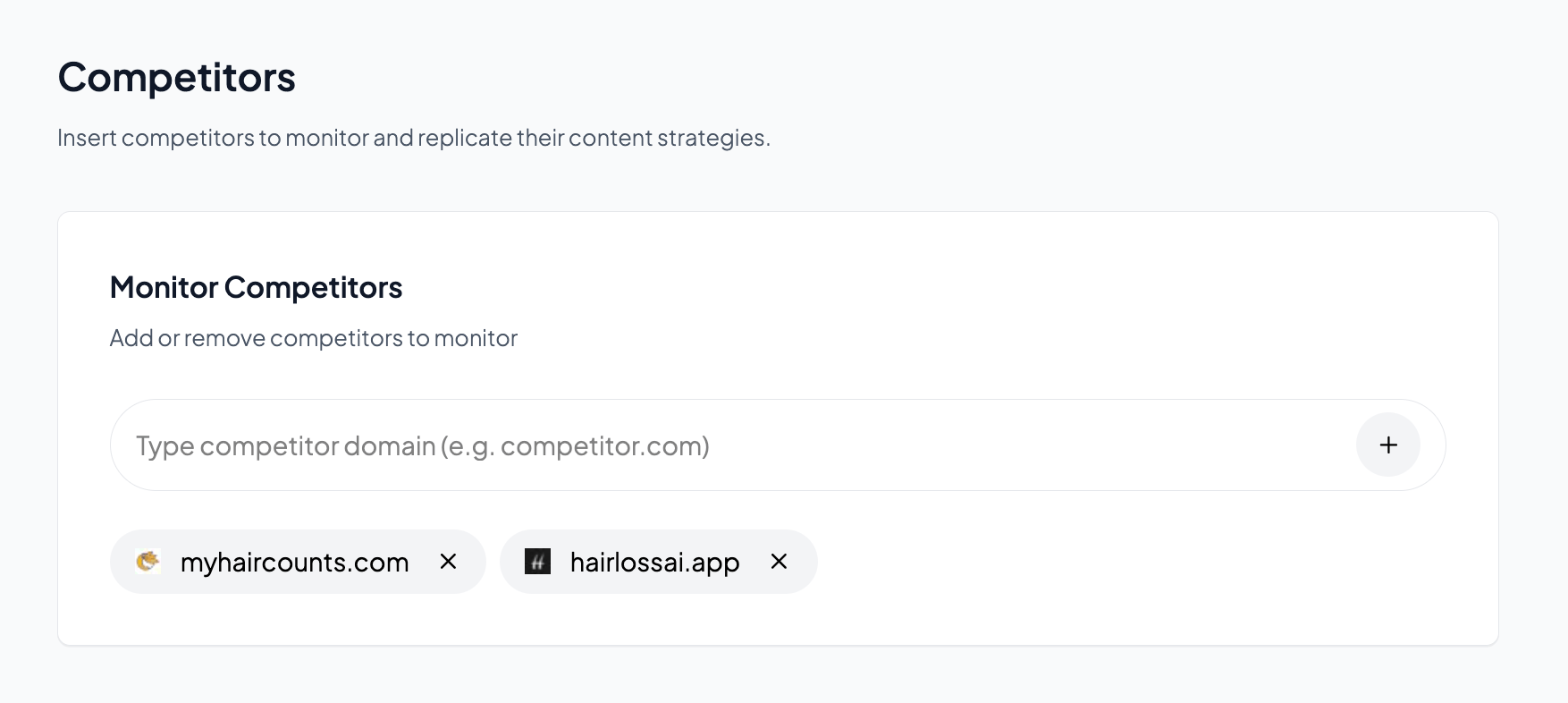
Monitor Competitors: Enter competitor domain names to track their content.
Content Intelligence: We analyze competitor content to help you identify gaps and opportunities.
Add or Remove: Easily add new competitors or remove ones no longer relevant.
Competitor data helps the AI understand your market and generate content that differentiates you from others in your niche.
Integrationsv
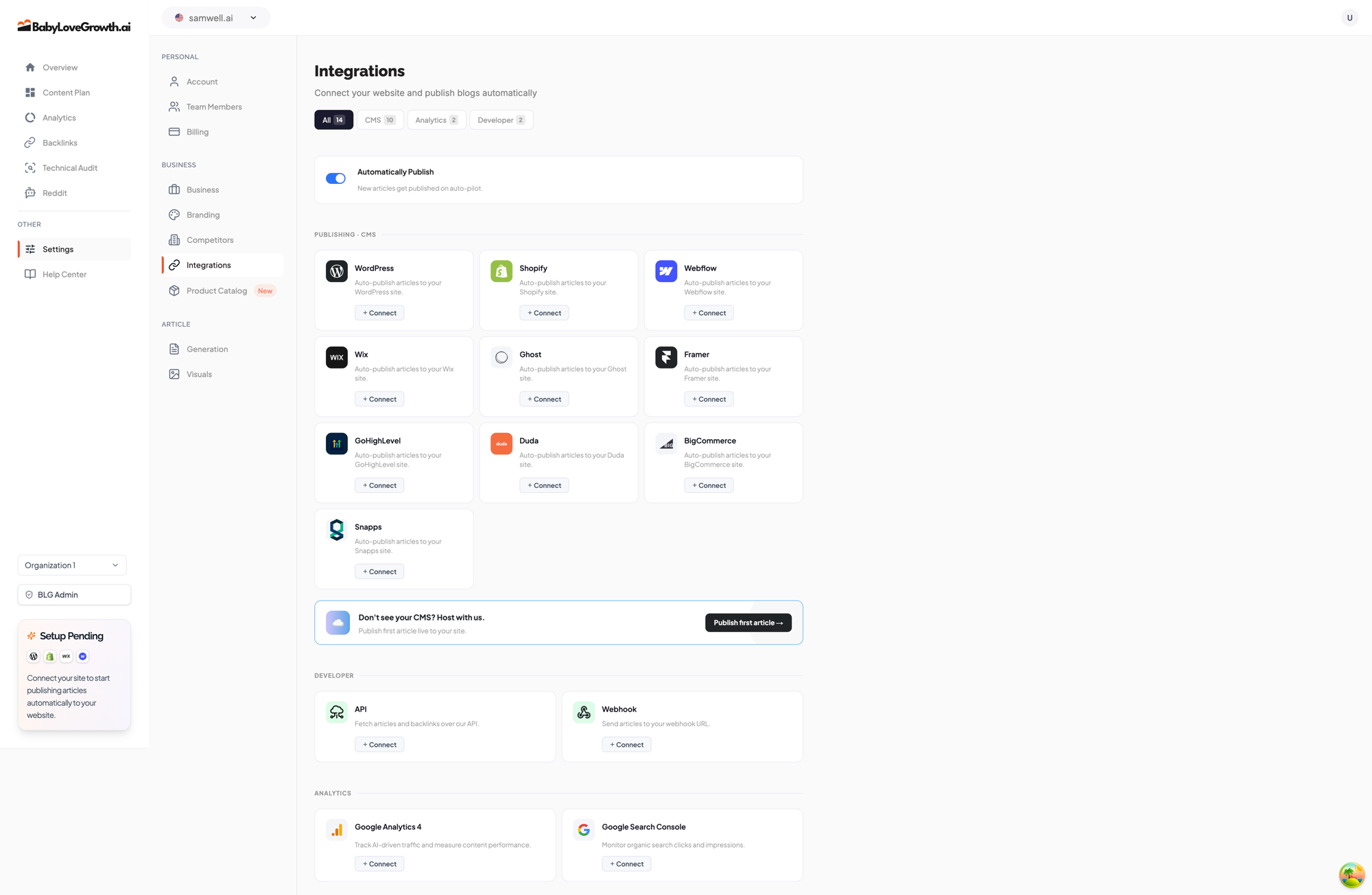
Connect your website or CMS to automatically publish generated articles. Use the filter tabs — All, CMS, Analytics, and Developer — to find what you need.
CMS / Publishing: WordPress, Shopify, Webflow, Wix, Ghost, Framer, GoHighLevel, Duda, BigCommerce, and Snapps — auto-publish articles to your site.
Blog Hosting: don't see your CMS? Let us host your blog on a subdomain with one DNS record.
Analytics: connect Google Analytics 4 and Google Search Console to track performance.
Developer: use the API or Webhooks to fetch or receive articles programmatically.
Each platform card shows a status pill (Connect, Connected, or Action needed). Click Connect to open a step-by-step setup wizard; once connected, click Manage to change settings. The Automatically Publish toggle near the top publishes new articles to your site on auto-pilot. See the
Integrations guide
for per-platform instructions.
Generation (Article Settings)v
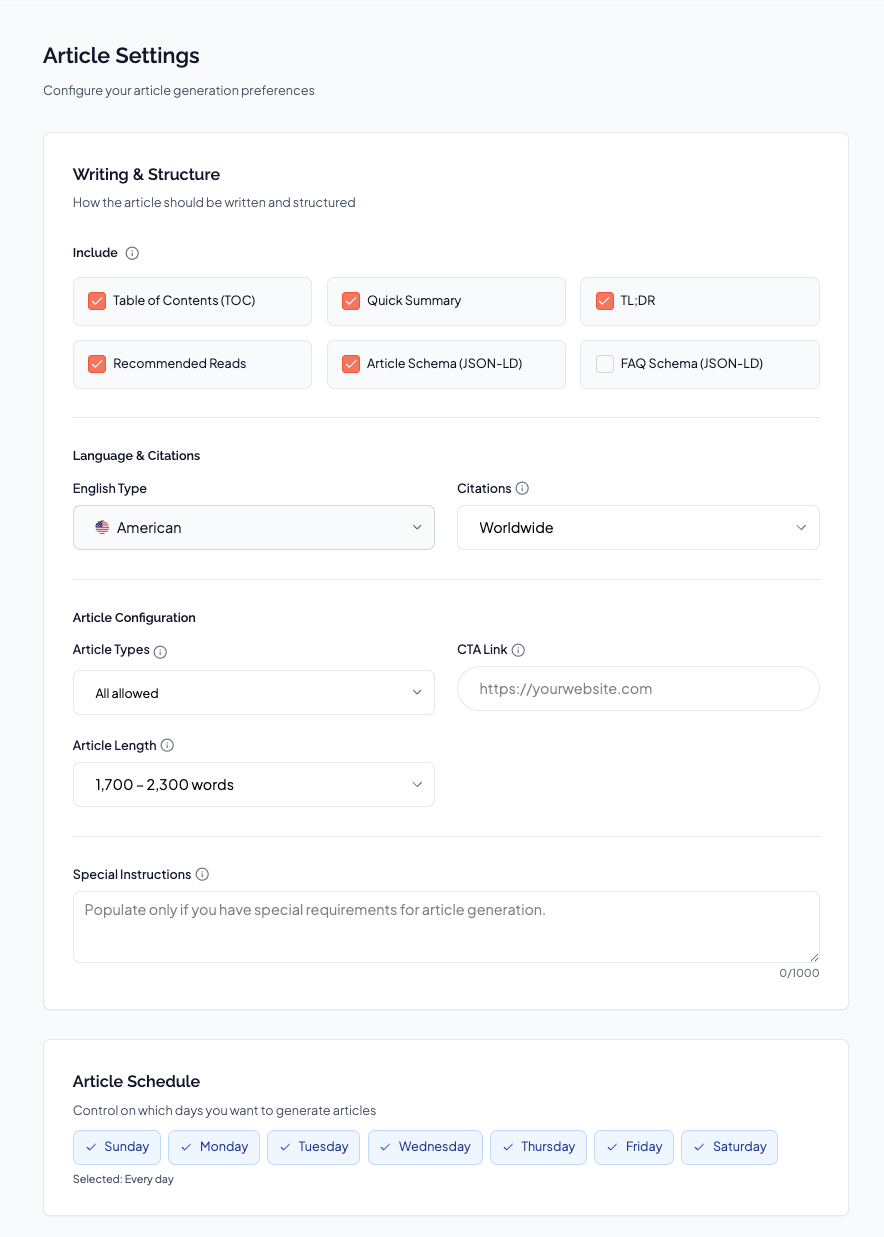
Toggle which elements should be included in every generated article:
Table of Contents (TOC): Include a table of contents at the top of articles.
Quick Summary: Add a summary section for readers who want key takeaways.
TL;DR: Include a short "too long; didn't read" snippet near the top of the article.
Recommended Reads: Add a section linking to related articles from your site.
Article Schema (JSON-LD): Include structured data for the article body — improves SEO and rich-result eligibility.
FAQ Schema (JSON-LD): Include FAQ structured data when the article has a Q&A section, so it can appear as rich results in search.
English Type: Choose American or British English spelling and conventions.
Citations: Set citation sources to Worldwide or region-specific.
Article Types: Control which types of articles can be generated (all allowed, or specific types only).
CTA Link: Set the default call-to-action URL included in articles.
Article Length: Choose the target word-count range for generated articles (e.g. 1,700–2,300 words).
Add custom instructions that apply to every generated article (up to 1000 characters).
Use this for global requirements like brand voice, formatting rules, or topics to avoid.
- Select which days of the week articles should be generated and published.
- Toggle individual days on or off based on your content calendar needs.
Enable internal links: Automatically add links to your other content within articles.
Add www prefix: Include www in internal link URLs if your site uses it.
Add trailing slash: Append a trailing slash to internal link URLs if needed.
Visuals (Article Visuals)v
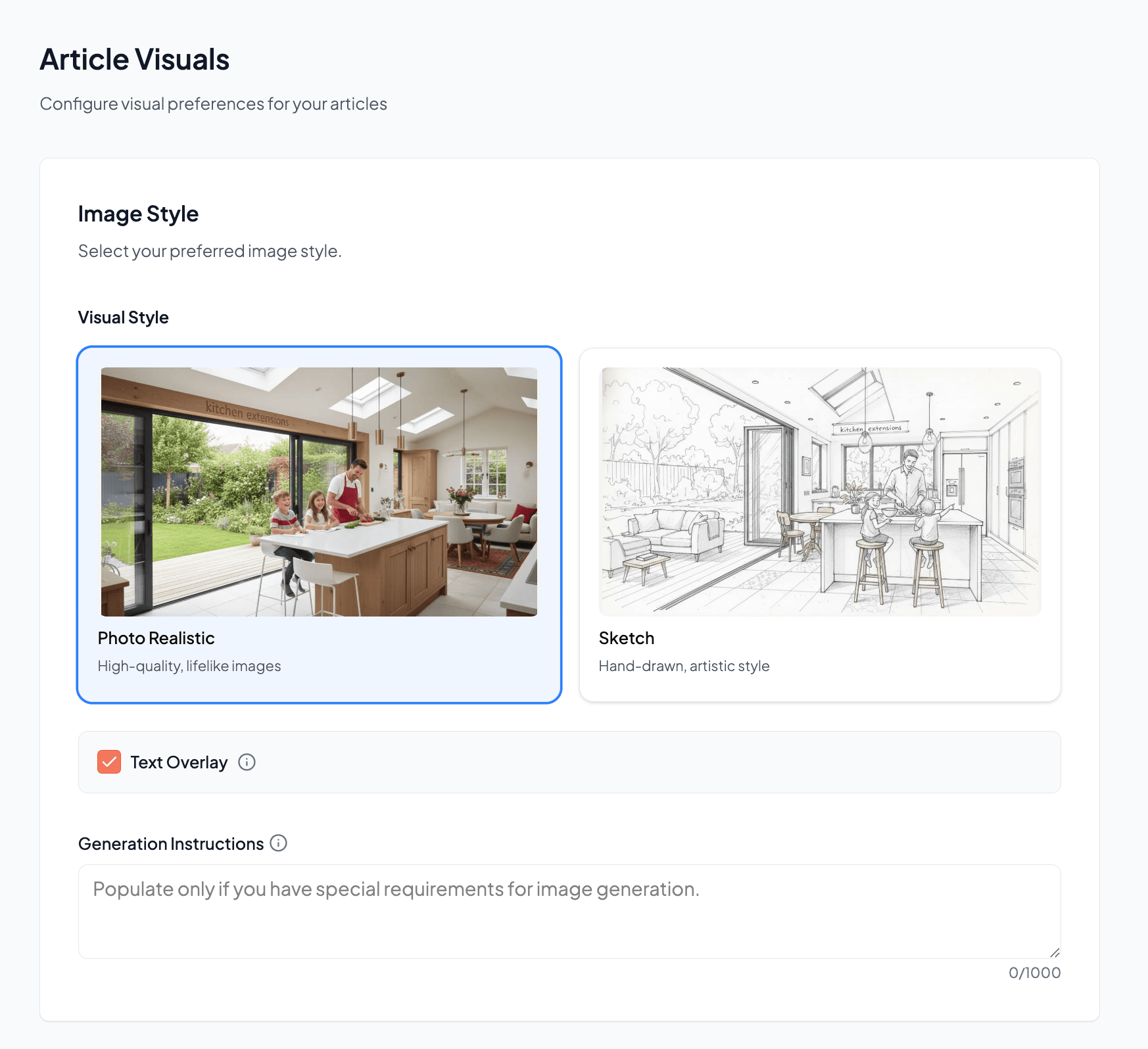
Photo Realistic: High-quality, lifelike images that look like real photographs.
Sketch: Hand-drawn, artistic style images for a unique aesthetic.
Text Overlay: Enable or disable text overlays on generated images.
Generation Instructions: Add custom instructions for image generation (up to 1000 characters).
YouTube Video: Include relevant YouTube videos in articles.
Website Screenshot: Add screenshots of referenced websites.
- Upload or change the screenshot used in article CTA sections.
- Replace or delete the current screenshot as needed.
- Upload up to 10 product images to feature in your articles.
- Images with transparent backgrounds work best.
- Click the Tutorial button for guidance on optimal image formats.